Advertisers today face growing challenges around privacy, data loss, and browser restrictions. These issues impact analytics and campaign performance significantly.
Google Tag Gateway (GTG) offers a direct answer. This simpler, cost-effective, and low-effort option addresses these issues for those using Google Analytics, Google Tag Manager, and Google Ads. The concept involves shifting your Google tags to a first-party context.
This post will clarify what GTG is, its primary advantages, provide step-by-step configuration guidance, compare it with server-side tagging, and offer practical advice for implementation and continued operation.
What is Google Tag Gateway (GTG) and How Does It Function?
Google Tag Gateway enables Google tags, like the Google Tag for GA4, Google Ads, or your Google Tag Manager container, to be loaded and served from your own domain. For example, this could be yourdomain.com/metrics, rather than Google’s default third-party domains, such as googletagmanager.com. It was formerly known as First-Party Mode (FPM).
The functionality works through your Content Delivery Network (CDN), for instance, Cloudflare, which acts as an intermediary. When a browser requests the tag, your CDN retrieves it from Google’s servers. However, it presents the tag to the user as if it originates from your own website, via a dedicated “measurement path” like /metrics.
Historically, tracking faced increasing blocks from browsers and ad blockers due to its third-party nature. GTG emerged as a more accessible alternative to server-side tagging for businesses finding server-side Google Tag Manager (sGTM) too complex or costly.
Core Benefits: Why GTG Matters for Marketers
GTG presents several compelling advantages for those working in digital marketing:
- Improved Tracking Accuracy and Conversions: Delivering tags from your own domain significantly reduces the probability of blocking by many browser restrictions and ad blockers. This yields a higher percentage of captured conversion events and more precise data sent to Google Analytics and Google Ads. It may result in an “uplift in performance boost, possibly up to 11%”.
- Enhanced Conversion Modelling: More complete and accurate initial data collection helps offset the impact of gCLID (Google Click ID) loss. This leads to more precise conversion modelling and better-informed optimization decisions for campaigns.
- Increased Data Security and Control: Reducing reliance on third-party integrations provides greater supervision over data handling. It minimizes potential entry points for malicious actors and aids in privacy adherence.
- Page Performance Advancement: First-party tag delivery often loads more quickly. Scripts can be downloaded from the CDN server closest to the visitor.
- Cost-Effectiveness: GTG is free to use. When integrated with a free CDN like Cloudflare, it introduces no additional costs.
- A Degree of “Future-Proofing”: While not a complete guarantee, GTG helps mitigate immediate privacy challenges. It relies more on first-party data, aligning with evolving industry trends.
Understanding Ad Blocker Efficacy and Browser Privacy
Ad blockers and browser privacy features play a significant role in tracking disruptions. Many browser extensions, like Ghostery or DuckDuckGo, inspect requests from your website. If these requests contain domains such as google-analytics.com or googletagmanager.com.They may block them. GTG aims to counteract this by making requests appear as originating from your domain.
However, one must remember that GTG reduces, but does not eliminate, the impact of all browser extensions. For instance, while DuckDuckGo may no longer block GA with GTG (at least currently), Ghostery might still.
Regarding Apple’s Intelligent Tracking Prevention (ITP), the situation is more nuanced. For client-side Google Analytics and GTM setups (without server-side tagging), GTG won’t extend cookie lifetimes beyond ITP limits. However, if GTG applies to a server-side GTM setup, cookies set from the server container could have a longer expiration period.
How to Configure Google Tag Gateway with Cloudflare and GTM
Configuring GTG with Cloudflare offers a straightforward approach, particularly through Google’s guided setup or directly in the Google Tag Manager interface.
Prerequisite: Connecting Your Website to a CDN
The main requirement for GTG is that your website uses a Content Delivery Network (CDN).
Cloudflare is a popular choice, offering a simple integration. Cloudflare functions as a middleman, serving a cached version of your website from geographically closer servers. This improves load times, reduces server load, and provides bot protection.

Configuration via Google Tag Manager (Recommended)
This method provides a convenient setup process.
1. Access Google Tag Manager Admin: Head to your GTM account and select “Admin” from the top tab. Locate “Google Tag Gateway” under your container; it should display “Not set up”.

2. Review Measurement Path: Google Tag Gateway will apply to GTM, GA4, and Google Ads. Review the suggested subfolder path (e.g., /metrics). This path will serve your Google tags and related requests from your domain. Avoid using a path that conflicts with existing URLs on your site.

Connect to Cloudflare: Click “Sign in to Cloudflare” and grant permission to connect GTM to your Cloudflare account.

Complete Setup: Finish the setup process within GTM. Cloudflare will automatically inject the Google Tag Manager container snippet into your website’s HTML. It configures this snippet to send requests to your specified subfolder.

What if you already possess a GTM or GA4 snippet on your site?
This presents no conflict with Google Tag Gateway.
The tag Cloudflare injects will acknowledge and respect your existing GTM or hardcoded Google Tag setup. Your previously added GTM container snippet will also begin using the configured subfolder path, providing GTG’s advantages.
You won’t experience duplicate data; the same number of requests will simply route through your first-party domain.
Configuration via Cloudflare
While Google Tag Gateway can be configured through Google Tag Manager for a streamlined experience, it can also be set up directly within Cloudflare.
1. Log in to the Cloudflare dashboard, then click on Tag Management > Google Tag Gateway.

2. Select your domain, then click the Configure button to set up Google Tag Gateway using your Google Tag ID and a reserved path on your website. Click Save to serve GTM as first-party data.

Configuration without Google Tag Manager
Even if you do not use GTM, but have Google Analytics 4 tracking code directly on your website, you can still enable GTG.
1. Go to your GA4 property: Open Google Analytics and select “Admin“.
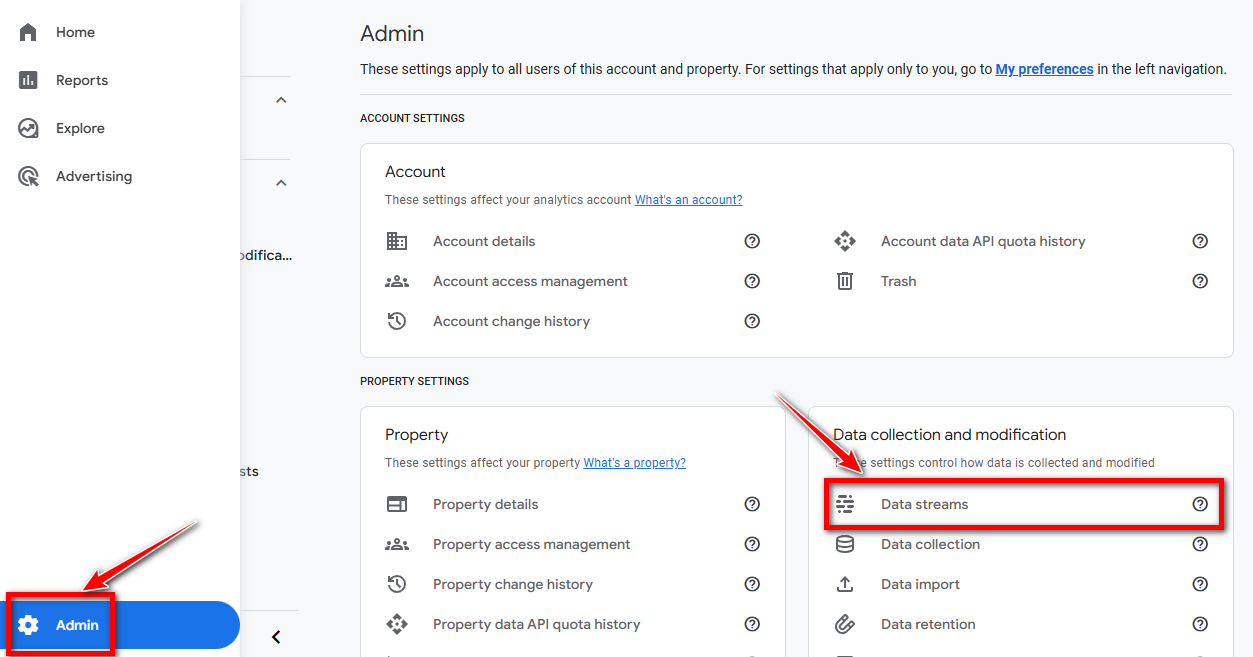
Access Data Streams: Select “Data collection and modification,” then “Data streams,” and choose your website data stream.

Configure Tag Settings: Scroll down to “Configure tag settings“.

Enable Google Tag Gateway: In the new popup, open the “Admin” tab and locate “Google Tag Gateway,” which should show “not set up“. The setup wizard will then appear, similar to the GTM process.

Testing the Setup
After setup, use your browser’s developer tools (Network tab) or the Google Tag Assistant extension to confirm requests are routing through your website’s domain (e.g., yourdomain.com/metrics)instead of Google’s domains.

Google Tag Gateway vs. Server-Side Google Tag Manager
Google Tag Gateway and server-side Google Tag Manager (sGTM) aim to improve data privacy and accuracy tracking through first-party contexts. However, their approaches and implementations differ considerably.
Server-side GTM requires setting up a dedicated tagging server, often on Google Cloud Platform. This gives you granular control over incoming data, allowing for enrichment, filtering, and customization of requests. It’s a powerful framework but demands technical knowledge, server provisioning, and ongoing maintenance.
The Google Tag Gateway, conversely, provides a lightweight way to serve Google tags from your own domain without needing to manage a server. It does not offer the full customization capabilities of sGTM, but it provides first-party delivery, which helps reduce tracking disruptions.
Here’s a concise comparison:
| Feature | Google Tag Gateway | GTM Server-Side |
|---|---|---|
| Setup difficulty | Simple setup | Requires server provisioning and configuration |
| Uses your domain | Yes | Yes |
| Need to run own server | No | Yes |
| Custom request handling | No, requests go directly to Google as-is | Yes, modify or filter data before sending |
| Works with Consent Mode | Yes | Yes |
| Use cases | Enhance reliability and privacy without added overhead | Complete control over data flow, advanced implementations |
| Best for | Marketers wanting a quick privacy improvement | Technical teams needing full customization and control |
GTG offers many of the same benefits as sGTM, like first-party tracking and reduced blocking, but without the intricacy. It can serve as a stepping stone towards a more advanced setup if your needs evolve.
Disadvantages of Google Tag Gateway(GTG)
While Google Tag Gateway (GTG) offers significant benefits for improving data accuracy and privacy by enabling first-party tag delivery, particularly for Google’s products, it does come with certain limitations and disadvantages, especially when compared to comprehensive server-side tagging solutions.
Here are the key disadvantages of Google Tag Gateway:
- Limited Scope to Google Products Only: The Google Tag Gateway is designed to work primarily with Google’s tracking codes, such as Google Analytics 4 (GA4), Google Tag Manager (GTM), and Google Ads. A significant limitation is that it will not improve the accuracy of non-Google tags that might be present in your GTM container, such as the Meta Pixel (for Facebook tracking) or LinkedIn Ads. For these third-party pixels, you would still need to implement a full server-side tagging solution to gain similar benefits. Or, use Cloudflare Zaraz, to manage GA4 and Other third-party scripts like FB pixel for better data collection.
- Partial Ad Blocker Mitigation: Although GTG helps in reducing the impact of some browser extensions that block tracking, like DuckDuckGo, by serving tags from your domain, it’s not a complete solution against all ad blockers. Sources indicate that some extensions, such as Ghostery, may still block Google Analytics even when GTG is enabled.
- Does Not Fully Replace Comprehensive Server-Side Tagging (sGTM): Google Tag Gateway is presented as a simpler and more cost-effective alternative to server-side tagging for those who find sGTM too complex or expensive. However, it does not replace the full capabilities of a comprehensive server-side GTM setup.
- With GTG, you do not gain the ability to modify, enrich, or filter data requests before they are sent to Google’s servers; the requests are forwarded directly as-is. In contrast, a full server-side GTM environment offers granular control, allowing you to preprocess data, add authentication, or rewrite requests.
- If your needs extend to full control over data flow, advanced data transformation, or secure handling of third-party tags, server-side GTM remains the more suitable option.
- Limited Cookie Longevity for Client-Side Setups: If Google Tag Gateway is implemented solely with a client-side GTM/GA setup (without server-side tagging), the cookie lifetime will still be limited by Intelligent Tracking Prevention (ITP), primarily affecting Apple’s Safari browser. To achieve longer cookie expiration dates and mitigate the impact of ITP more effectively, GTG needs to be combined with a server-side GTM implementation, which allows cookies to be set from the server container.
- Redundant with Existing Advanced Server-Side Setups: For businesses that have already implemented a sophisticated server-side tagging setup that properly handles proxying and cookie-lifetime extension.
- Potential Complexity with Non-Cloudflare CDNs: While the configuration of Google Tag Gateway is “super simple” and natively integrated when using Cloudflare as your Content Delivery Network (CDN), the sources indicate that setting it up with other CDN providers involves a manual process. This manual configuration can be less convenient and potentially more complex than the streamlined, built-in Cloudflare integration.
Should You Be Using Google Tag Gateway?
The decision hinges on your current tracking setup and specific requirements.
- If you already use server-side Google Tag Manager, particularly with solutions like Stape’s Custom Loader and Cookie Keeper, GTG isn’t necessarily needed. Your existing server-side setup likely already delivers benefits such as extended cookie longevity and ad blocker resistance.
- If your setup is confined to client-side Google Analytics 4, Google Ads, and/or web-based GTM, then GTG is a definite must-have. The setup is exceedingly simple, considering the advantages it provides, especially if you already use Cloudflare. Moreover, it incurs no additional costs.
- Even if your Google Tag Manager container includes non-Google tags, such as Meta Pixel, alongside your Google tags, you should still implement Google Tag Gateway. While it won’t improve the accuracy of your Facebook tracking, your Google Analytics, Google Ads, and general Google Tag Manager data will become more accurate. Or use Cloudflare Zaraz, for managing Google and third-party scripts like Facebook pixel.
Summary
Google Tag Gateway offers a compelling upgrade for anyone aiming to improve the quality and reliability of their tracking. By serving Google tags from your domain using a CDN like Cloudflare, you can lessen the risk of data loss, meet privacy expectations, and gain a more complete understanding of user interactions on your website.
Unlike traditional server-side tagging, the Gateway is efficient and easy to put into action. You don’t need to be a developer or manage your server; the setup takes only a few minutes. For those employing Google Analytics or Google Ads, enabling First-Party Tags represents one of the swiftest ways to enhance your measurement framework. This low-effort improvement will yield better data and contribute to “future-proofing” your tracking.
