Is your WooCommerce website slow?
Are you searching for ways to speed up your WooCommerce store?
One of the most common challenges WooCommerce website owners face is the inability to handle a significant surge in traffic or orders, particularly during special promotions or public holidays.
Having a slow-loading WooCommerce store may be acceptable when it doesn’t cost you anything. However, in the eCommerce industry, it leads to significant financial losses and damages your brand reputation. Moreover, it can result in declining search engine rankings and customer loyalty.
Nobody wants to lose money consistently, so optimizing the speed of a slow-loading WooCommerce store has become increasingly important.
This comprehensive WooCommerce speed optimization guide will walk you through practical tips, tricks, and fixes to apply to your website.
This guide focuses on the importance of having an optimal number of plugins and optimizing the WooCommerce database. This requires familiarity with inserting code into your WooCommerce installation.
Don’t worry; I’m trying to ensure this WooCommerce performance guide remains beginner-friendly.
So before jumping to guide, let’s address this important question first,
Why Does Speed Matter for Online Stores?
Faster is better.
Every second counts in the eCommerce industry; nobody wants to wait forever for the cart page to load before placing orders. This means that the faster your WooCommerce store page loads, the more satisfied the customer will be.
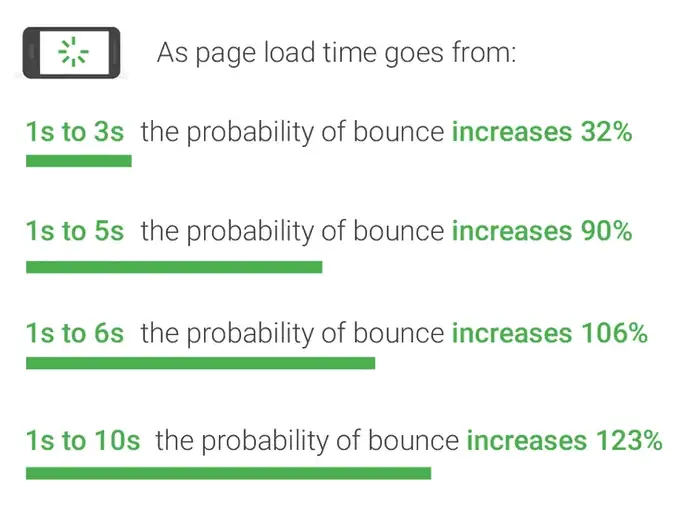
A Google study shows that the chances of a bounce rate increase by up to 32% when the page loading time goes from one second to three seconds and by 90% when it reaches five seconds. If it takes even longer, up to ten seconds, your eCommerce bounce rate can skyrocket to 123%.
No matter what, faster is better, and less is more.
In 2006, Amazon discovered that every additional 100ms of page load time resulted in a 1% decrease in sales. To put this into perspective, Amazon’s annual revenue for 2022 amounted to $513.983 billion. A 1% loss in 2022 would have amounted to approximately $5.13983 billion.

How Does Slow Page Speed Impact an eCommerce Business?
Here, I have listed four surprising impacts of a slow-loading eCommerce website.
Bad User Experience: The average human attention span is decreasing to just 8.25 seconds, 25% less than from 2000 to 2015. Therefore, visitors are more likely to abandon your website if it loads slowly, losing potential customers.
Search Engine Ranking Drop: Google considers website speed a ranking factor in their search engine algorithm. If your website is found to load slowly, resulting in a high bounce rate and a poor user experience, Google may penalize your entire website by pushing it to the bottom or second page of their search results.
Traffic Loss: When you lose your position in search engines, you miss out on numerous potential customers. Additionally, visitors from direct channels encountering slow loading issues will unlikely revisit your website, leading to traffic loss.
Why Should You Optimize the Performance of Your WooCommerce Store?
Based on statistics from BuiltWith in June 2023, out of one million websites using an eCommerce platform, WooCommerce holds a share of 4.73%.
Comparing WooCommerce’s market share to other eCommerce providers reveals fascinating data. WooCommerce leads with a significant % usage rate of 41%, followed by Shopify at 33%. Note that Shopify and Shopify Plus are considered single entities in this calculation.

How many websites use WooCommerce in 2023?
According to the WordPress plugin repository, there have been 25,25,26,842 all-time downloads and over 5+ million active installations of the free WooCommerce plugin. However, this information is inaccurate as the precise number of installations has been removed by WordPress since April 2017.

According to BuiltWith, there is a total count of 6,156,424 live sites, with an additional 2,981,737 redirect sites.
How to measure your WooCommerce store’s loading speed and performance?
Remember: What you cannot see, you can’t improve it.
Now that you understand why speed is essential for your WooCommerce website, learning how to measure it is compulsory. Knowing how to measure website improvement while working on your store is critical.
Web page speed tools are excellent for testing your website speed and structure. However, it is essential to remember that if you make mistakes in the WooCommerce optimization process, your site may become slower than before.
Tools I recommend,
- GTmetrix
- Google PageSpeedInsights
- Chrome built-in Performance Insights and Lighthouse
I recommend starting with one tool and sticking with it. My favorite tool is GTmetrix, but feel free to choose whichever tool you prefer.

You can also use Query Monitor to check the impact of other plugins, themes, and custom code on your WooCommerce store’s front end, back end, and database. This tool is helpful in the process of optimizing your WooCommerce database.
Tip: Don’t forget to take notes of the speed test results before and after optimization. This will help you track and measure your progress through your WooCommerce optimization process.
There is a difference between actual and perceived performance, as the user experience goes beyond the technical aspects that empower the website. Perceived performance measures how quickly users perceive your site to be.
Therefore, utilize the tips and tricks mentioned below to enhance the overall user experience of your eCommerce site, focusing not only on achieving high-speed scores on web page speed tools but also on improving the user experience.
What Is the Optimal Load Time?
The optimal page load time is typically 0-2 seconds, with 3 seconds also considered sufficient. However, any duration exceeding 3 seconds increases the risk of visitors abandoning your site.
How to Speed Up Your WooCommerce Store
A speed test report provides detailed information about the current score of your site and offers a clear, actionable plan for optimizing your slow WooCommerce store. Let’s get started.
Choose a high-quality hosting provider optimized for WooCommerce.
The hosting provider you choose is the foundation of your eCommerce store. Just as a weak foundation hinders the construction of a strong building, hosting your WooCommerce store on a slow server will impede your efforts to increase its speed using the tips and tricks mentioned below.
In this guide, I will not discuss shared hosting services. If you are serious about your online store, I recommend opting for managed or unmanaged VPS, dedicated server, or managed WordPress hosting.
Unmanaged hosting is suitable for technically skilled users capable of independently customizing and managing the server. In contrast, managed hosting is ideal for users who prefer not to handle server management and focus solely on their business.
VPS, which stands for Virtual Private Server, is a virtual server housed within a physical server (dedicated). VPS offers dedicated resources, giving users greater control over scalability, customization, and shared hosting.
You have two options: managed or unmanaged VPS.
Managed VPS operates similarly to managed WordPress hosting services. With managed VPS, the provider takes responsibility for the server while granting you complete control and SSH access. You can consider checking out Cloudways for this option.
Unmanaged VPS is a do-it-yourself approach. You are accountable for running the server smoothly and troubleshooting any errors that may arise. This option can save you a significant amount of money. If you are unfamiliar with server management, you can utilize paid services like RunCloud or GridPane or free scripts like Webinoly or CloudPanel.
☑️: For more details, look at our comprehensive review on Webinoly: manage super fast WordPress servers.
✅: Look at our detailed review of CloudPanel, a free web-based hosting panel for creating incredibly powerful web servers.
Managed WordPress Hosting: In this type of hosting, the service provider takes care of all hosting-related aspects. It’s important to note that managed hosting services are typically more expensive than unmanaged options.
For highly reliable WooCommerce-managed hosting, consider checking out Kinsta or Rocket.net.
What should you look for in WooCommerce hosting companies?
When choosing a WooCommerce hosting plan, take into consideration the following recommended features:
- Server-level caching with WooCommerce-specific caching rule present.
- Nginx or LiteSpeed web server.
- The latest PHP version.
- MySQL version 5.6 or greater OR MariaDB version 10.1 or greater
- The WordPress memory limit is 256 MB or greater.
- HTTPS support.
- At least 2 to 4 PHP workers must handle WooCommerce’s uncached requests without timing them out.
- CDN integration is essential for enhancing both performance and security.
- 24/7 support availability in case of any problem.
☑️: Check our detailed guide on choosing the best WordPress hosting to save money and time.
Keep your PHP version updated.
We know that WordPress is written in the PHP language, and like any other language, it experiences improvements with each update. Updating your PHP version brings benefits such as faster code execution, enhanced security, and improved performance.
According to a study by Kinsta, a WooCommerce store running on PHP 7.2 is 11.47% slower than one running on PHP 8.1.

You can find your PHP version under WordPress Dashboard → WooCommerce → Status → System Status → Server environment.
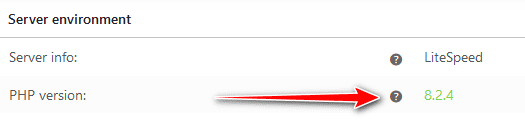
Or, WordPress Dashboard → Tools → Site Health → Info → Server.
Tip: If your website displays a PHP version lower than recommended, please contact your hosting provider for assistance.
Increase the WordPress memory limit.
This is a common issue for many WooCommerce websites, but fortunately, it’s easy to fix.
By default, WordPress allocates 32 MB of memory for PHP, and if any issues arise, it attempts to increase it to 40 MB for single sites or 64 MB for multisite setups. While this is enough for small blogs and static business sites, however when you want to unleash the full potential of WooCommerce, you might encounter the “Allowed memory size of xxxxxx bytes exhausted” error in your dashboard.
To resolve this, increase the PHP limit to 256 MB.
Use wp-config.php: Add the following code inside the wp-config.php file to increase the PHP memory limit.
define( 'WP_MEMORY_LIMIT', '256M' );
Note: Please be aware that a server-level rule implemented by your WordPress host may overwrite this recommendation.
Increase PHP memory limit in the Direct Admin panel: You can increase the PHP limit in the Direct Admin control panel by clicking on the select PHP version in the Extra Features section. Then click on the Options tab, find memory_limit settings, and change them according to your need.

Get a Fast WooCommerce Optimized theme.
Themes play a crucial role in the site design process as they are the backbone of the overall appearance and functionality. They have the potential to either enhance or break the user experience. Therefore, using a suitable and perfect WooCommerce theme is of utmost importance. Hundreds of thousands of themes are available on the WordPress directory and other theme-selling sites.
While a theme may appear visually appealing with numerous features and built-in animations, it’s essential to consider the potential negative impact on performance due to the added bloatware caused by these features. We need a fast, visually appealing theme and compatible with WooCommerce.
You can use the feature filter on the new theme selection page to find such a theme. Simply check the “E-commerce” checkbox in the subject column. Additionally, you can click on other checkboxes to filter themes based on your desired features.
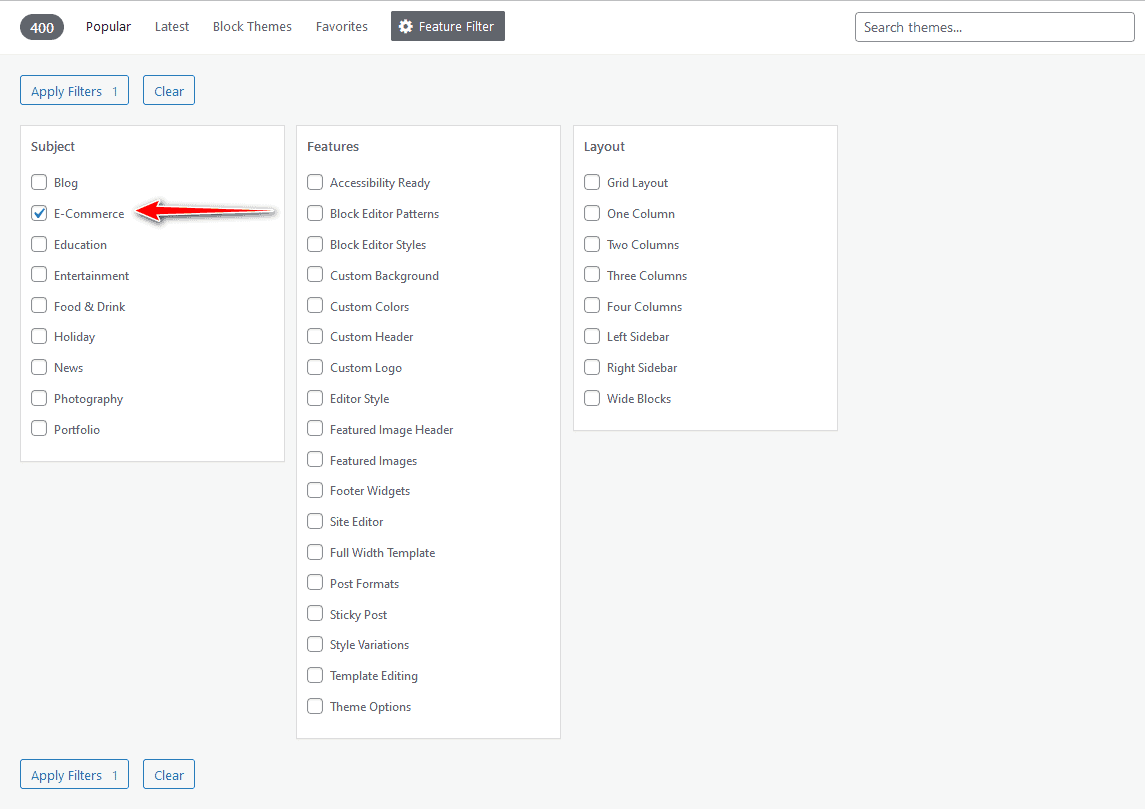
You can choose the fastest WooCommerce theme from the list below or find one with a good page speed score.
Pro Tip: If you’re using a page builder to design your new store, avoid using bloated page builders like WP Bakery, Elementor, or Divi. Instead, opt for modern page builders like BricksBuilder or OxygenBuilder. The BLOGGYAANI website is currently using BricksBuilder.
To select a theme for your store, create a list of features required for your eCommerce store and find a theme that covers all or most of these features. This approach will help you reduce your dependence on third-party plugins.
Here are some tips to get a fast WooCommerce-optimized theme:
- Look for themes labeled “WooCommerce optimized” or “built for WooCommerce.“
- Choose a lightweight theme that prioritizes speed and performance.
- Consider themes with clean code and minimal external dependencies.
- Opt for a mobile-friendly responsive theme that provides a seamless user experience across devices.
- Check the theme’s documentation and reviews to ensure it has good performance ratings.
- Consider using a premium theme from reputable theme providers known for their optimization efforts.
By selecting a fast and optimized theme, you can enhance your eCommerce store’s speed and overall performance, improving user experience and customer satisfaction.
Reduce the number of plugins and WooCommerce extensions on your website.
WordPress currently hosts 60,635+ plugins in its public plugins directory, and you can find countless plugins from companies and individuals on the internet. Installing a relevant plugin for your use case is very tempting, but you can often achieve that functionality using just two or three lines of code.

Like plugins, you can extend the functionality of your Woo Store with free and premium extensions. There are currently 822+ extensions available on Woo’s official website.

What happens when you use too many plugins in WordPress?
There is no standard limit for too many plugins; I suggest you stick with 10 to 30 high-quality plugins or extensions.
When I mentioned reducing the plugin count in your WordPress installation, it doesn’t mean you can’t use too many plugins. It means you have to carefully select and vet the plugins before installation. Some plugin developers may not follow the best coding standards.
I also recommend avoiding all-in-one plugins because they often include extensive features, even though you may only need two or three functions. This leads to unnecessary code running on your website, significantly slowing your WooCommerce store down. Instead of opting for an all-in-one solution, choose smaller plugins designed for each task, following the best coding practices.
Sometimes, plugins conflict, and identifying the culprit requires time and effort. That’s why I advise you to keep your plugin list concise and only include high-quality plugins with the best coding practices.
Remove unused scripts and stylesheets to optimize your WooCommerce code.
Installing plugins or themes on your WordPress website usually loads scripts and stylesheets on all your site pages, even if they are not used.
E.g., Contact Form 7 is one of the most popular plugins for contact forms; you only need it on a contact page. However, by default, it loads assets on every page of your website.
Similarly, you don’t need the payment gateway code to load and run on the front or product page; it is only required when the visitor wants to pay for goods.
This behavior results in a penalty for page speed and performance, resulting in slower loading times for your eCommerce store. Removing these files and displaying them only on relevant pages helps reduce bloat and improves page loading speed.
Examine the waterfall chart in your website speed test report to identify which assets can be unloaded from the current page. This chart provides an idea about the unnecessary loaded assets, helping you decide which ones can be removed.
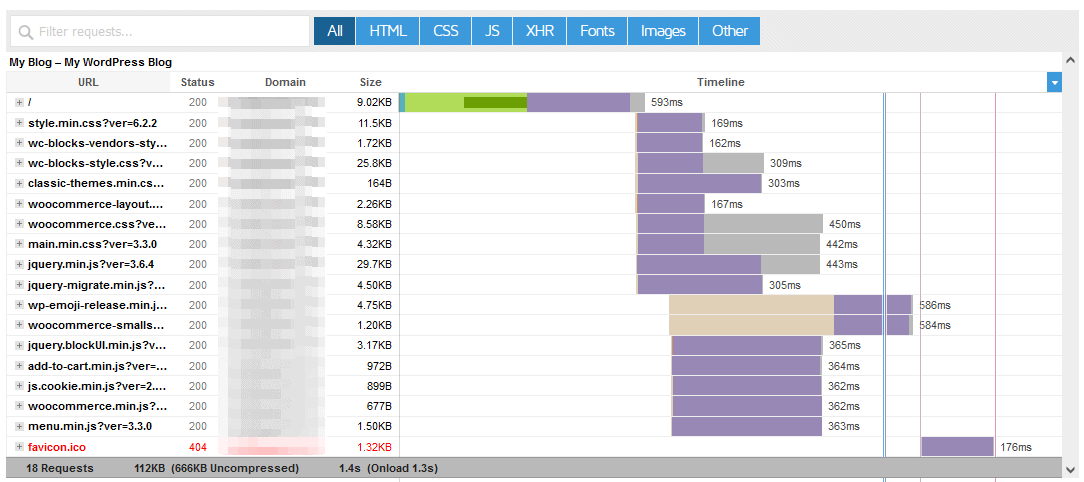
The Chrome browser’s DevTools’ Network tab offers a complete view of a web page’s loading process, making it a perfect starting point for analysis.

Tip: Always check the “Disable Cache” box to obtain an uncached response from your WooCommerce store.
Start from your home page, then proceed to the shop, product, and checkout pages.
For stripping unnecessary scripts and codes, you can use a plugin like Perfmatters or Asset CleanUp: Page Speed Booster.
If you want to completely unload the plugin functions and assets from the page, you can use either the Plugin Load Filter or the Freesoul Deactivate Plugin.
☑️: Check out our detailed review of the Plugin Load Filter, which explains how to conditionally disable or enable WordPress plugins on specific posts or pages.
Compress your product images and videos to optimize their delivery.
You may have heard the phrase, “A picture is worth a thousand words.” It’s true because eCommerce shoppers often prefer images over plain text.
Images can occupy a significant amount of space on your product pages, ranging from kilobytes to even megabytes. According to the 2022 HTTP Archive study, images account for 62.6% of desktop web page size and 66.1% of mobile devices.
Based on the HTTP Archive page weight report, the average page size for desktop is 2393.8 KB, while for mobile, it’s 2095.4 KB. Specifically, images contribute to 1,498.5 KB on desktop and 1,385 KB on mobile devices.
Image optimization is the easiest fix in the entire speed optimization process for WooCommerce or WordPress sites.
Resize images for optimal size: This is the first step in image optimization for the web. When you export images for the web using your preferred image editing software, export them in the recommended size for product images or blog images according to your WooCommerce theme.
The recommended width for the main image is 600px, and for the thumbnail, it is 300px. Starting from version 3.3, WooCommerce can perform on-the-fly thumbnail resizing, fix blurry photos, and resize thumbnails with a background process. This eliminates the need for additional plugins to handle such tasks.
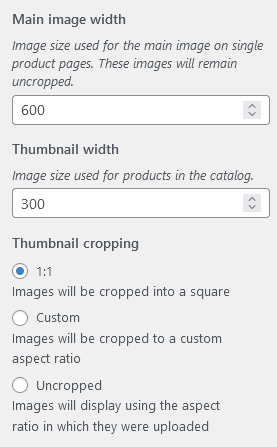
Instead of relying solely on WordPress, I recommend generating the appropriate image sizes on your local machine and then uploading them. This approach will help me save disk space and optimize website images.
I suggest checking out the following tools for image resizing:
- Adobe Express free image resizer (Online)
- Icecream App image resizer (Windows)
- Image Resizer – Resize Photos (Mac)
- QuickScale (Mac)
Compress images: As you can see, images account for 62% to 66% of the total page size. Imagine uploading an image directory from your DSLR or mobile camera. It would significantly increase the size of your product page. Additionally, uploading a 6000px wide image for a product page is unnecessary.
Compressing images before displaying them to visitors is essential to address. Doing so can reduce the file size and improve page loading speed.
Let’s understand this with an example:
- I downloaded an image from the web that was 6016 x 4000 pixels wide, with a large file size of 3.94 MB.
- I resized it to a width of 600 pixels, which reduced the size to 65 KB.
- I then compressed it using the ShortPixel online image compressor, further reducing the size to 34 KB.
I saved 3.9 MB without sacrificing significant image quality. You can check the original files here.
I recommend you check the following plugins and tools for image compression. For WooCommerce, my favorite is ShortPixel.
- Short Pixel (WP Plugin)
- Imagify (WP Plugin)
- Optimole (WP Plugin)
- Squoosh (Online)
- Compressor.io (Online)
Choose the Right Image Format: Google recommends using next-gen image formats like Avif and WebP, supported by major browsers. Both formats offer better compression than the default JPEG and PNG formats.
While WordPress supports direct uploading of WebP images, I suggest uploading PNG or JPEG files as before and generating WebP or Avif formats on the fly using conditional <picture> tags or configuration files like .htaccess or Nginx.
To optimize images and improve the speed of your WooCommerce website, my recommended tool is ShortPixel.
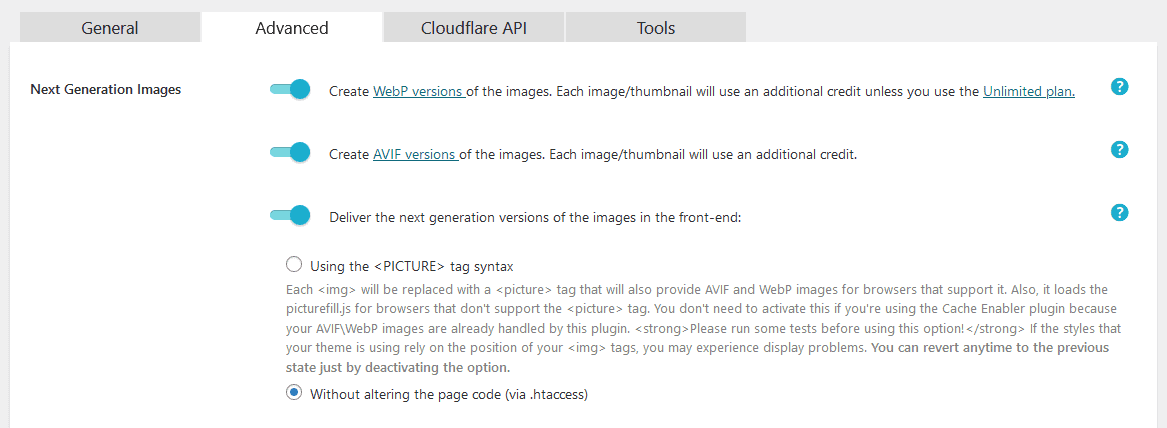
Tip: Avoid plugins that consume your server resources for image compression. Instead, opt for plugins that utilize external services to compress images.
Host Videos Externally: If images tell a thousand words, videos tell a story. However, video size poses a significant challenge. Images typically range from 100 KB to 200 KB in size. And videos range from 1MB to several MB.
While client testimonials are valuable for SEO, hosting them on your server can significantly impact page speed.
To avoid this, consider external hosting. Free platforms like YouTube or Vimeo can be utilized, or you can opt for CDN providers like Bunny CDN.
Lazy Load Images, Videos, and iframes
Imagine the impact of numerous images, videos, and social media posts (such as tweets or Facebook updates) loading simultaneously on your product page.
Failure to meet recommended loading times can result in losing potential customers.
To address this, the lazy load technique is used. It postpones resource loading until necessary, enhancing performance and conserving system resources. For instance, images below the visible area are replaced with placeholders and loaded as users scroll.
Lazy loading can be applied to images, videos, and iframes. Recommended plugins for WooCommerce stores include a3 Lazy Load or LazyLoad Plugin by WP Rocket.
Warning: Avoid lazy loading the first image and logo on your website to prevent significant Cumulative Layout Shift (CLS) issues.
Cache WooCommerce to Speed It Up
Caching is a highly efficient method for accelerating WooCommerce websites. It stores a static version of your page on disk or RAM, minimizing the server’s workload in generating and delivering the page for the following requests.
So why do we need caching?
- The user enters the domain name in their browser to request a website like bloggyaani.com.
- The browser contacts DNS servers to obtain the website’s IP address for the requested webpage.
- The server’s hosted applications, like WordPress or Joomla, handle the requests for displaying web pages.
- These applications execute scripts and access databases to compile the webpage and send it back to the browsers for user display.
If everything works fine, the process should be finished for a single visitor’s request in seconds.
However, when multiple requests come from thousands of visitors, even a powerful server may result in a slow-loading store.
Caching comes to the rescue by reducing the server’s workload. It creates a static webpage version, eliminating the need for the entire process mentioned earlier. Caching makes WordPress as fast as static websites.
✅: Check this comparison of the six best user-friendly WordPress caching plugins.
You can implement caching at the server, CDN, or application level. I recommend server-level or CDN-level caching over application-level caching. Choose hosting providers that offer server-level caching without additional costs.
If server-level caching is not available, consider using Cloudflare. Cloudflare provides CDN services and caching at the DNS level, resulting in improved website speed when properly configured.
Tip: If you’re using Cloudflare’s free plan, you may experience caching issues on add to cart and checkout pages. Consider using Super Page Cache for Cloudflare, a plugin that simulates Cloudflare APO functionality in the free tier. Also, exclude dynamic pages from Cloudflare’s aggressive caching.
If the server or CDN access is not possible, use application-level caching. Install caching plugins like WP Rocket, Cache Enabler, or Swift Performance Lite.
☑️: Take a look at our in-depth review of WP Rocket, the ultimate WordPress caching plugin!
✅: Take a closer look at our comprehensive review of Cache Enabler, the best free caching plugin.
HTTP/2 is Extremely Essential for Your Online Store
HTTP, short for Hypertext Transfer Protocol, is the fundamental protocol for web applications, facilitating communication between computers and servers to request and transmit information.
The initial version of HTTP, HTTP 1.1, was introduced in 1997 and has undergone several evolutionary stages. Despite its age, HTTP 1.1 is still widely used on the internet. However, each file download requires a separate connection, resulting in multiple TCP connections between the visitor’s machine and servers.
For example, if the visitor’s machine requires three files to render the webpage, it will establish three TCP connections with the servers.
To address this limitation, HTTP/2 was introduced in 2015 as an advancement over HTTP 1.1. With improved content prioritization during loading, HTTP/2 offers enhanced speed and efficiency. It requires only one TCP connection between the visitor’s machine and servers, even if multiple files are needed to render the webpage.
For example, if the visitor’s machine requires three files to render the webpage, only one TCP connection is needed between the visitor’s machine and the servers.
In summary, HTTP/2 is superior to HTTP 1.1, delivering faster and more efficient web browsing by optimizing the required TCP connections.
The performance increase with HTTP/2 is attributed to various factors:
- Improved multiplexing and parallelism over a single TCP connection.
- HPACK compression for headers, utilizing the Huffman encoding algorithm.
- ALPN extension for faster encryption.
- Aggressive server pushes to enhance performance by sending additional resources without waiting for requests.
WooCommerce utilizes multiple assets to display pages to visitors. You can significantly benefit by switching to HTTP/2 or the newer experimental HTTP/3. Use the KeyCDN HTTP/2 testing tool to check your web server’s HTTP/2 compatibility.
Although HTTP/2 is now a common standard, I recommend considering a new hosting provider if your hosts still do not support it.
Deliver WooCommerce Static Resources via CDN
A CDN is a distributed server network that caches content near users for faster access. It enables the quick transfer of static assets like HTML, JavaScript, CSS, and images and can handle dynamic content like audio and video files.
While you may have the fastest servers for your WooCommerce sites, providing better page speed to users, this speed is limited to regions where your servers are located.
Using a WordPress CDN reduces network latency and time to first byte (TTFB) by minimizing the distance between users and static resources. CDNs automatically serve content from the nearest server location based on the visitor’s request origin, improving WooCommerce page speed and user experience.
For example, suppose your eCommerce store is hosted in the USA, and you’re using Cloudflare when visitors from Pune, India, access your site. In that case, Cloudflare’s CDN serves the website resources from the nearest location, Mumbai, India.
CDNs offer additional performance-enhancing features such as on-the-fly image compression, support for HTTP/2 and HTTP/3, hotlink protection, and enhanced security measures.
Pro Tip: When selecting a CDN for your eCommerce store, choose one with a broad global reach, represented by more Points of Presence (PoPs) across the globe. Cloudflare, for example, has PoPs in over 280 cities worldwide, ensuring a faster website experience for users.
Some remarkable CDN providers are,
Optimize General WooCommerce Settings for Maximum Performance.
I am starting with the basic speed optimization of WordPress and the WooCommerce plugin.
Change your login URL: Every WordPress website has a default login URL: “https://domain.com/wp-admin.” While this URL is easy to remember and share, it can become a significant security concern as your site grows in popularity.
Changing your login URL to something unique helps protect your site from brute-force attacks and common hacking attempts.
You can easily change the login URL using free plugins like WPS Hide Login, Hide My WP Ghost, or paid plugins like perfmatters.
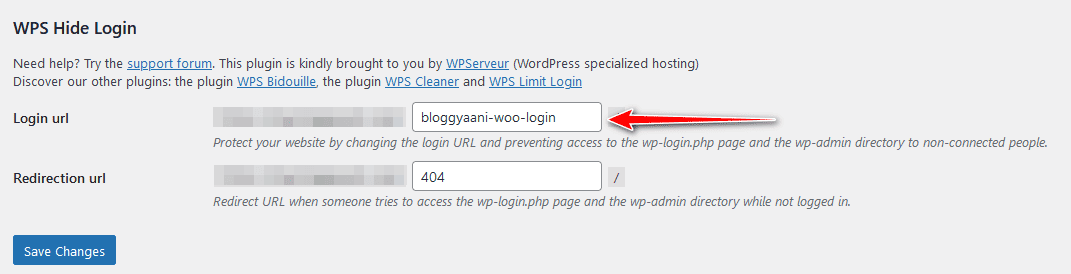
Tip: Avoid using generic slugs like “login-area” or “admin-area“; always make the login URL unique and challenging to guess.
Limit Blog Page Count: To improve performance and cater to eCommerce-focused websites with separate blog sections, set a lower limit (under ten posts) for your blog pages.

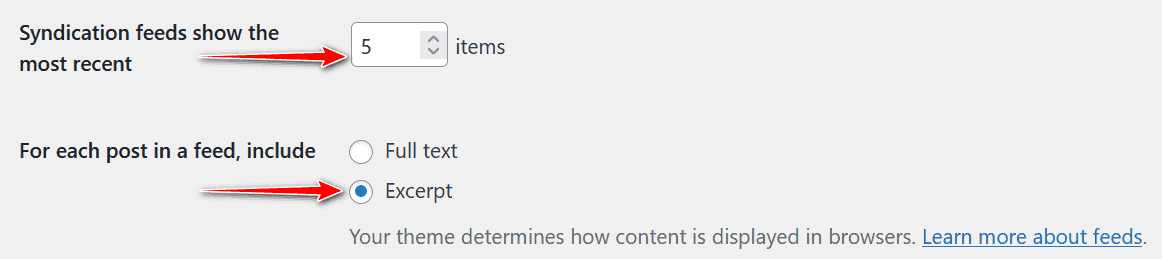
Limit Feed Posts Count: If you’re running a blog with your store, limit the posts displayed in the blog feed to 4 or 5 instead of 10. Choose Excerpt over Full Text to save server resources on a high-traffic WordPress blog. You can find this option under WordPress Dashboard → Settings → Reading.
Disable Pingbacks: Pingbacks are a great way to notify when you link to someone’s page and to get notified when someone links to your page. However, they are often abused for generating backlinks. To disable pingbacks, uncheck the checkboxes. You can find this option under WordPress Dashboard → Settings → Discussion.

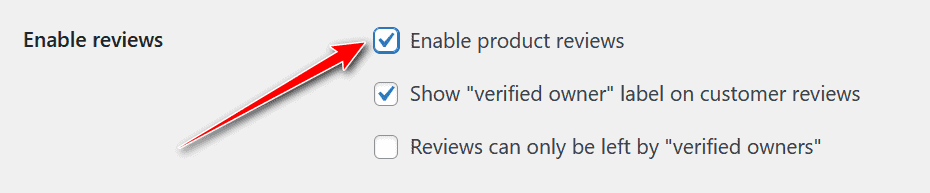
Disable WooCommerce Product Review: Sometimes, you may not want to show buyer reviews on your product page. In such cases, you need to remove them. This can help reduce the number of scripts and widgets loaded on your product page, improving your site’s page speed scores. To disable buyer reviews, simply uncheck the checkbox. You can find this option under WooCommerce → Settings.
Remove WooCommerce Bloat: Disable Bloat for WooCommerce removes unnecessary bloatware from WooCommerce and improves the speed of both the front end and admin panel.
You can disable WooCommerce scripts, styles, and cart fragments on the front end. Additionally, you can disable certain features in the admin panel to make it cleaner and faster.

- Disable WooCommerce Scripts and Styles: Disable unnecessary WooCommerce stylesheets (woocommerce-layout.css, woocommerce-smallscreen.css, and woocommerce.css) on non-eCommerce pages to improve site performance.
- Disable WooCommerce Junk in the Admin: Remove unnecessary WooCommerce admin elements such as widgets, analytics, notifications, and more to achieve a cleaner interface.
✅: Check out these free plugins to make your WordPress faster and maximize website performance.
Clean Up Your WooCommerce Database Periodically
A database is the most crucial aspect of your Woo store; it holds the following:
- Site content includes product pages, categories, tags, user data, reviews, site-wide settings, themes, plugins, etc.
- Transaction data, including order details, payments, inventory, etc.
Every time visitors visit your site, the content is primarily static and won’t change much. However, when they place an order, they request dynamic data. If you don’t optimize your database regularly, your server takes time to fulfill visitor requests, resulting in a slow website load.
Database optimization is critical to keeping your website running as swiftly as possible.
Optimizing the database manually requires time. You can automate this process using the free WP-Optimize plugin. It will show you which tables have useless data and delete that data, helping you reclaim storage space lost to data fragmentation.
You can schedule WP-Optimize to clean up and optimize your database regularly.
Note: Always take a backup before starting any database optimization process.
Delete Old Revisions: You don’t need a hundred variations of your product page, right?
If your store has been running for a long time, your database will be filled with old pages, posts, and product revisions. It’s time to do a cleanup.
You can use a free plugin like WP-Sweep or the paid WP Rocket.
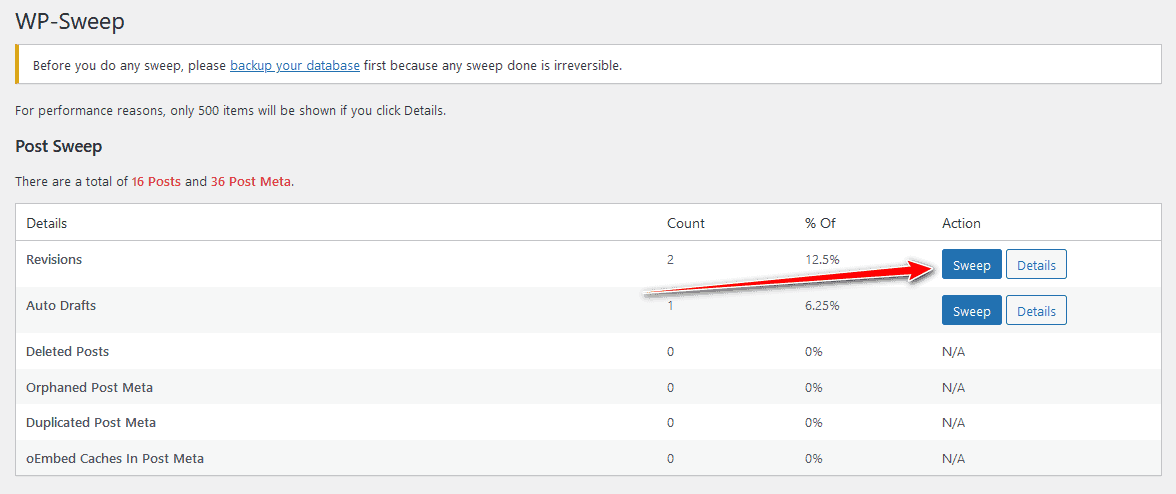
Limit the Number of Revisions Stored: Sometimes, we need the previous version of a product if we make any mistakes during the updating process. In this situation, you can limit the number of revisions using the following code inside your wp-config.php file or via a plugin like Perfmatters, Limit Revisions, or WP Revisions Control.
define('WP_POST_REVISIONS', 15);
The code above has a limit set to 15 revisions. Feel free to modify this number according to your preference, but it is recommended to keep it below 15.
Disable Revisions (If They’re Unnecessary): I recommend turning it off if you do not require revisions. Use the following code within your wp-config.php file or a plugin like Disable Post Revision to disable revisions.
define('WP_POST_REVISIONS', false);

Clean up Expired Transients: Transients are cached data stored in the WordPress database with a custom name and expiration period, specifically in the wp_options table. Similar to options, transients have the additional property of an expiration time. They help to store temporary data like responses from remote APIs or large queries.
A corrupt transient cache can result in a significant buildup of junk entries, potentially causing a bloated database and severely impacting site performance.
You can use the previously mentioned WP-Sweep to remove all expired transients.

Use Redis for Your WooCommerce Store
A caching plugin does an excellent job of making your store nearly static. However, what about dynamic requests such as adding to cart, checkout pages, and user logins?
You can use Redis to cache those dynamic requests to the database.
Redis is an in-memory database that stores data in server RAM, eliminating the need for database queries and significantly improving website speed.
Tip: Use Redis with your traditional caching methods to take advantage of both worlds.
Disable AJAX Cart Fragments Features in WooCommerce
AJAX Cart Fragments is a default feature in WooCommerce that automatically updates the cart without a page refresh, giving customers a quick overview of their added products.
Excessive AJAX requests for Cart Fragments can slow down site speed and disrupt caching on non-eCommerce pages, such as the homepage or blog posts. This can significantly impact website performance, especially on shared hosting servers. Additionally, the majority of Woo stores may not utilize this feature.
You can disable “get_refreshed_fragments” by going to WooCommerce → Settings → Products → Add to cart behavior.
To enhance the shopping experience, consider disabling the “Enable AJAX add to cart buttons on the archive” option and enabling “Redirect to the cart.” This allows visitors to review their information before proceeding.

You can use the Disable Cart Fragments plugin to enjoy the benefits of both worlds. This plugin allows you to continue using the caching plugin while updating cart totals when the cart is not empty.
Limit WordPress Heartbeat
WordPress 3.6 introduced the Heartbeat API, which enables browser-server communication in the admin panel. It provides real-time notifications, collaboration on edited posts, and script executions by plugins.
While the Heartbeat API offers valuable functionality, it can cause issues due to frequent checks and POST requests, increasing CPU usage. The Heartbeat API utilizes the wp-admin/admin-ajax.php file for AJAX calls. If you notice excessive POST requests from this file, consider limiting or disabling the Heartbeat API to manage server load.
I recommend not disabling the Heartbeat API completely; instead, consider limiting its usage.
However, if you still wish to turn it off, use the following function in your theme’s function.php file.
add_action( 'init', 'stop_heartbeat', 1 );
function stop_heartbeat() {
wp_deregister_script('heartbeat');
}
To limit the usage of the Heartbeat API, you can use the Heartbeat Control plugin.
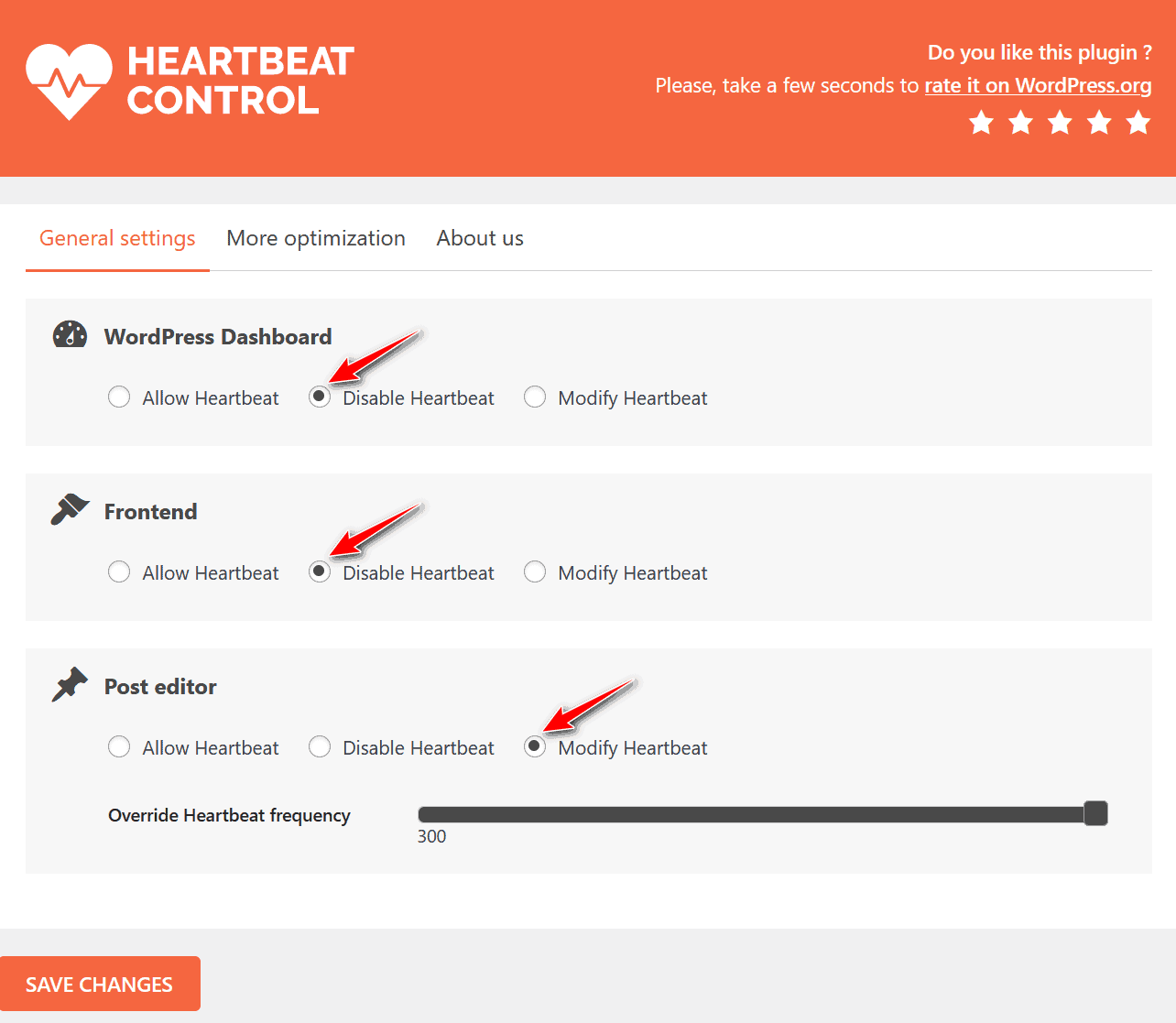
I disabled the Heartbeat API on the WordPress dashboard and WooCommerce front end but allowed it in the post editor. Instead of the default 60 seconds, I set it to 300 seconds.
Summary
With all the tips and tricks mentioned in this post, I am confident you can easily optimize the speed of your WooCommerce store. It is advised to take before and after test results to compare your performance as a Woo speed optimization expert.
After reading and following this comprehensive WooCommerce speed optimization guide, you can make your Woo store faster than before. These changes are relatively easy to implement.
However, if you’re not comfortable doing the optimization on your own, I’ll understand that. Please contact me if you’re experiencing difficulties or noticing strange behavior on your website. I am always ready to assist you.
If you need assistance following this guide, please comment below, and I will respond as soon as possible.
