WordPress is a great tool – it’s powerful, free, and lets you set up a website quickly. But, slow performance is a downside to all of these benefits.
Many WordPress users want a speedy website, yet they struggle to speed up their WordPress sites. They love the functionality of WordPress but hate its slowness.
To improve performance, you need to cache your WP pages.
WordPress is dynamic, meaning if you don’t cache your pages, they connect to the database and process through the PHP engine every time a user visits that page.
Caching turns your dynamic website into a static, allowing faster content delivery.
Choosing the right WordPress caching plugin can improve your website’s loading speed on the end-user device, eventually improving user satisfaction.
In this post, I have introduced you to the best premium WP caching plugin, WP Rocket, for your WordPress setup with optimal settings (according to my experience) and some free alternatives (who doesn’t love free things). This way, you don’t have to change your WP web hosting immediately.
⚠️: WP Rocket only works with WordPress.
WP Rocket – The Best Premium WordPress Caching Plugin for Your WordPress Websites
WP Rocket is a premium WordPress speed optimization plugin that improves the user experience by seamlessly integrating page speed optimization best practices with a powerful caching solution.
It achieves this through intelligent caching rules. Web developers and agencies have recognized it as one of the best cache plugins for WordPress.
I have been testing and using various caching solutions from the WP world since 2012. While each solution has its pros and cons, in my experience, WP Rocket is the best noob-friendly and battle-tested WordPress caching plugin.
How?
When you activate WP Rocket at your WP installation, it activates,
- Caching all the pages for quick viewing
- Decrease bandwidth usage with our GZIP compression
- Management of the headers (expires, etags…)
And it makes your site faster and more responsive. Once activated, you can adjust the settings and optimize your website for speed, transforming it into a high-speed rocket.
WP Rocket turns anyone into a WP Speed Guru, especially newbies who may struggle to optimize their WP installation for maximum speed.
You must still learn many things about WordPress, speed, and optimization.
WP Rocket is more than just a caching plugin that helps to cache a page or reduce bandwidth usage. It offers additional features to enhance your WordPress website’s performance and user experience.
- Reduction of the number of HTTP requests to reduce loading time.
- Minification and concatenation of JS and CSS files.
- Deferred loading of images (LazyLoad).
- Deferred loading of videos and Iframes.
- Deferred loading of JavaScript files.
- Clean your database trash and bloat.
- Offload your WP-Content folder to your preferred CDN.
How WP Rocket Performed in the Real World
The true test of any product is its performance in the real world. Here are some test results from my demo site.
I am using the MaxKVM VPS server, with Nginx as the web server, and for my WordPress site, I am using the Digital Marketing homepage demo of the Divi theme.
Why Divi?
The Divi theme is known for its vast collection of pre-made and demo templates, and it’s also considered one of the most used page builders for WordPress. However, it comes with a drawback – it loads a significant amount of unnecessary resources, making it one of the heaviest page builders for WordPress.
In this blog post, I will show you how to speed up Divi or any other theme using WP Rocket.
For this test, I used the GTmetrix Mumbai server. Please check the Time to First Byte and Fully Loaded Time for better comparison.
Test Site Before WP Rocket:
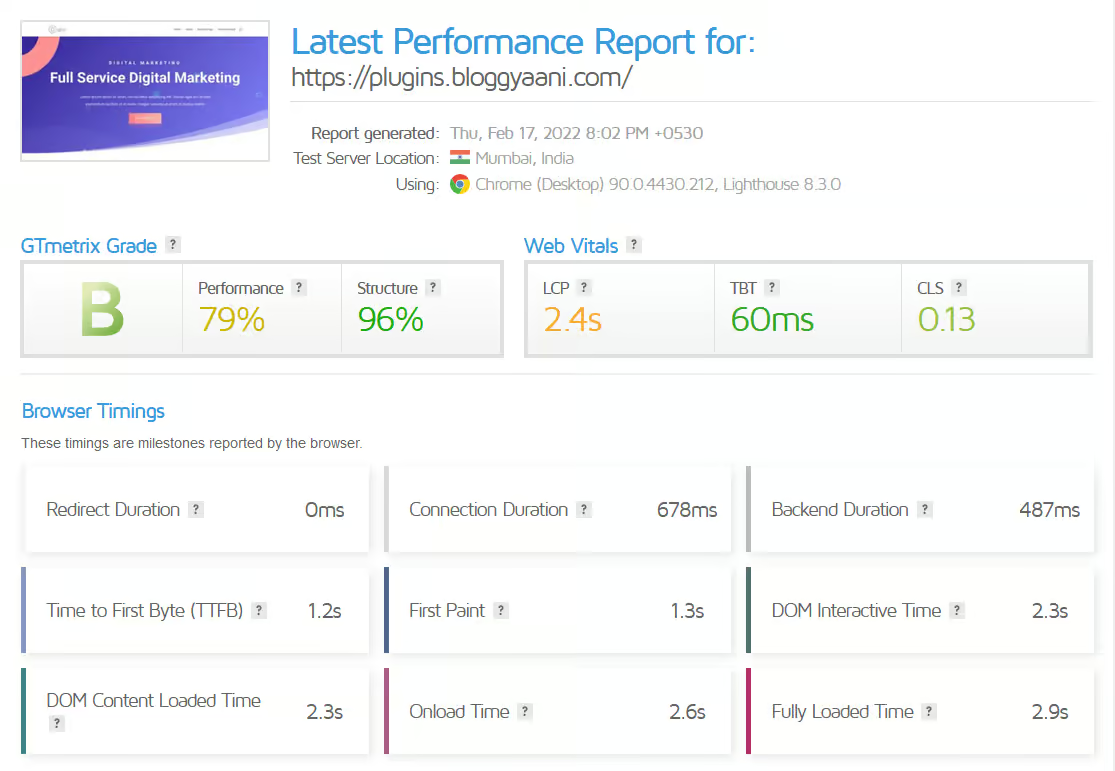
| GTmetrix Grade | B |
| Performance | 79% |
| Structure | 96% |
| LCP | 2.4s |
| TBT | 60ms |
| CLS | 0.13 |
| First Contentful Paint | 1.3s |
| Time to Interactive | 2.3s |
| Speed Index | 1.6s |
| Backend Duration | 487ms |
| TTFB | 1.2s |
| First Paint | 1.3s |
| Onload Time | 2.6s |
| Fully Loaded Time | 2.9s |
| Requests | 27 |
| Page Size(Compressed) | 924KB |
| Page Size(Uncompressed) | 1.38MB |
11% Speed Increase After Activating WP Rocket (Default Setting):
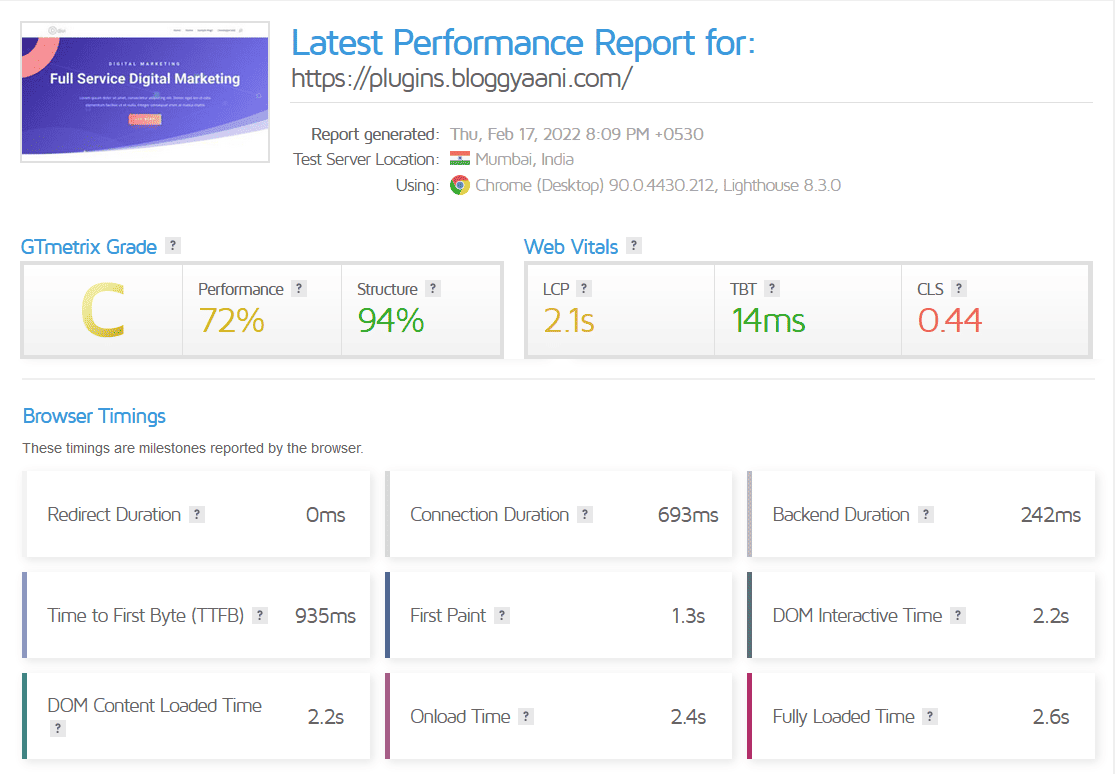
| GTmetrix Grade | C |
| Performance | 72% |
| Structure | 94% |
| LCP | 2.1s |
| TBT | 14ms |
| CLS | 0.44 |
| First Contentful Paint | 1.3s |
| Time to Interactive | 2.2s |
| Speed Index | 1.6s |
| Backend Duration | 242ms |
| TTFB | 935ms |
| First Paint | 1.3s |
| Onload Time | 2.4s |
| Fully Loaded Time | 2.6s |
| Requests | 26 |
| Page Size(Compressed) | 855KB |
| Page Size(Uncompressed) | 1.33MB |
28% Speed Increase After Activating WP Rocket(Optimal Setting):

| GTmetrix Grade | B |
| Performance | 85% |
| Structure | 99% |
| LCP | 2.1s |
| TBT | 3ms |
| CLS | 0.13 |
| First Contentful Paint | 1.0s |
| Time to Interactive | 1.8s |
| Speed Index | 1.1s |
| Backend Duration | 220ms |
| TTFB | 872ms |
| First Paint | 1.0s |
| Onload Time | 1.8s |
| Fully Loaded Time | 2.1s |
| Requests | 14 |
| Page Size(Compressed) | 354KB |
| Page Size(Uncompressed) | 736KB |
WP Rocket Speed Comparison Table:
| Plugin Name | Default WordPress Installation | WP Rocket(Default Setting) | WP Rocket(Optimal Setting) |
| GTmetrix Grade | B | C | B |
| Performance | 79% | 72% | 85% |
| Structure | 96% | 94% | 99% |
| LCP | 2.4s | 2.1s | 2.1s |
| TBT | 60ms | 14ms | 3ms |
| CLS | 0.13 | 0.44 | 0.13 |
| First Contentful Paint | 1.3s | 1.3s | 1.0s |
| Time to Interactive | 2.3s | 2.2s | 1.8s |
| Speed Index | 1.6s | 1.6s | 1.1s |
| Backend Duration | 487ms | 242ms | 220ms |
| TTFB | 1.2s | 935ms | 872ms |
| First Paint | 1.3s | 1.3s | 1.0s |
| Onload Time | 2.6s | 2.4s | 1.8s |
| Fully Loaded Time | 2.9s | 2.6s | 2.1s |
| Requests | 27 | 26 | 14 |
| Page Size(Compressed) | 924KB | 855KB | 354KB |
| Page Size(Uncompressed) | 1.38MB | 1.35MB | 736KB |
| Speed Increase | 11% | 28% |
Master WP Rocket in Minutes: A Step-by-Step Guide for Beginners on how to use WP Rocket for the best results.
Upon uploading and activating WP Rocket, your website will optimize itself without extra effort.
Dashboard:
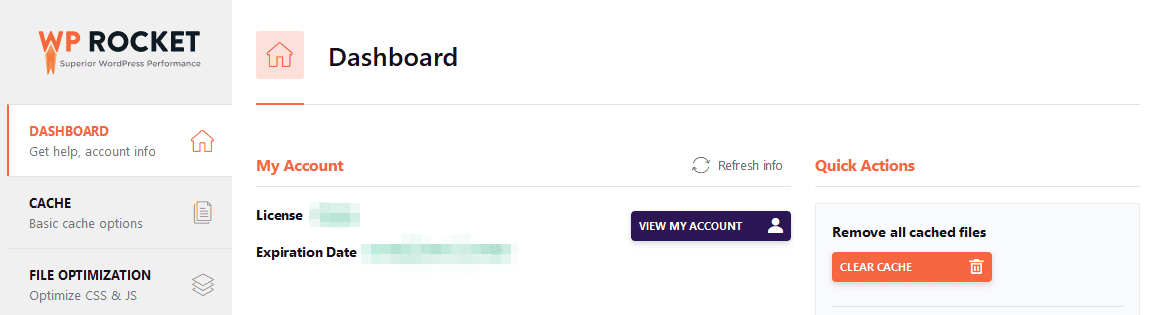
When you open the WP Rocket settings, the dashboard tab welcomes you.
The dashboard tab doesn’t contain any important settings, but you can find the most important action button that lets you purge or clean the entire cached version of your site, and enables you to preload the cache for your website.
Cache:
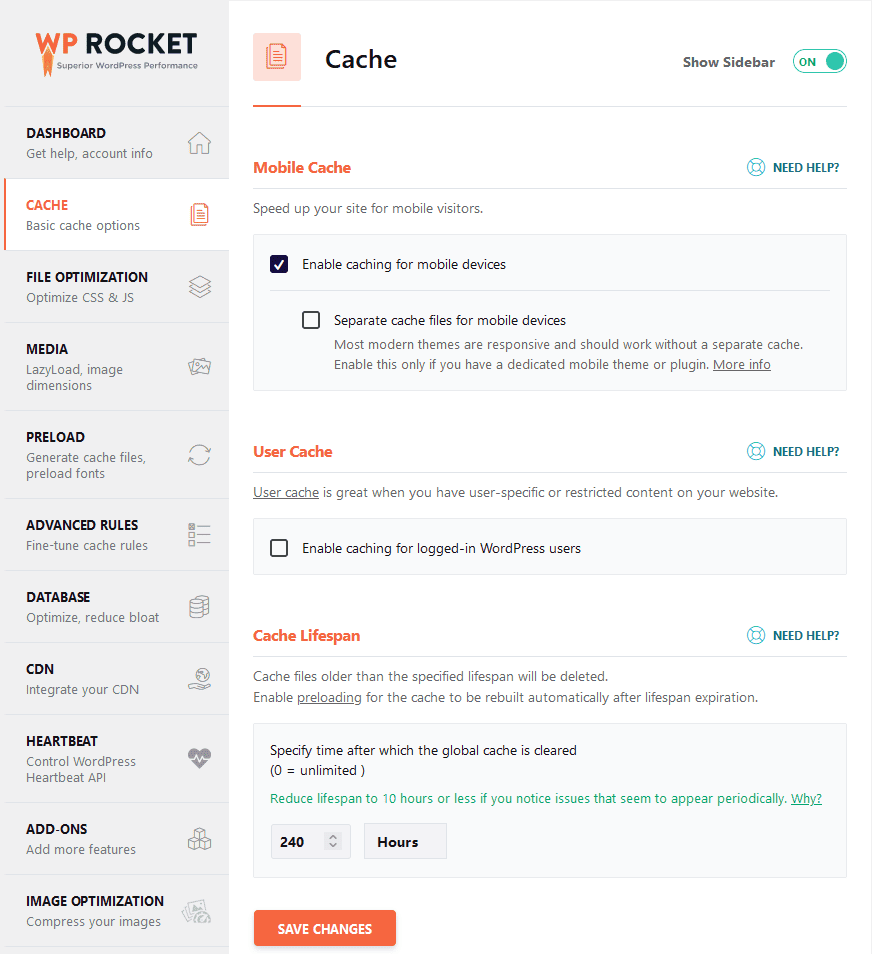
Mobile Cache: Always enable caching for mobile devices. If your theme is responsive, do not select separate cache files for mobile devices.
If you’re using plugins to make your site mobile-friendly, ✅ check the option for separate cache files for mobile devices.
Why?
You may not need a separate cache if you have a modern responsive theme. However, if you use a dedicated mobile theme or plugin, you should enable this option.
User Cache: Use this option if your website contains user-specific or restricted content. Otherwise, leave it blank.
Cache Lifespan: It allows you to clear the cache after a specified time automatically. WP Rocket’s default is 10 hours, but if you’re running a content website like a blog whose content won’t change frequently, you can make it longer. I choose 10 days or 240 hours.
⚠️: Always click the “Save Changes” button after making any adjustments.
File Optimization:
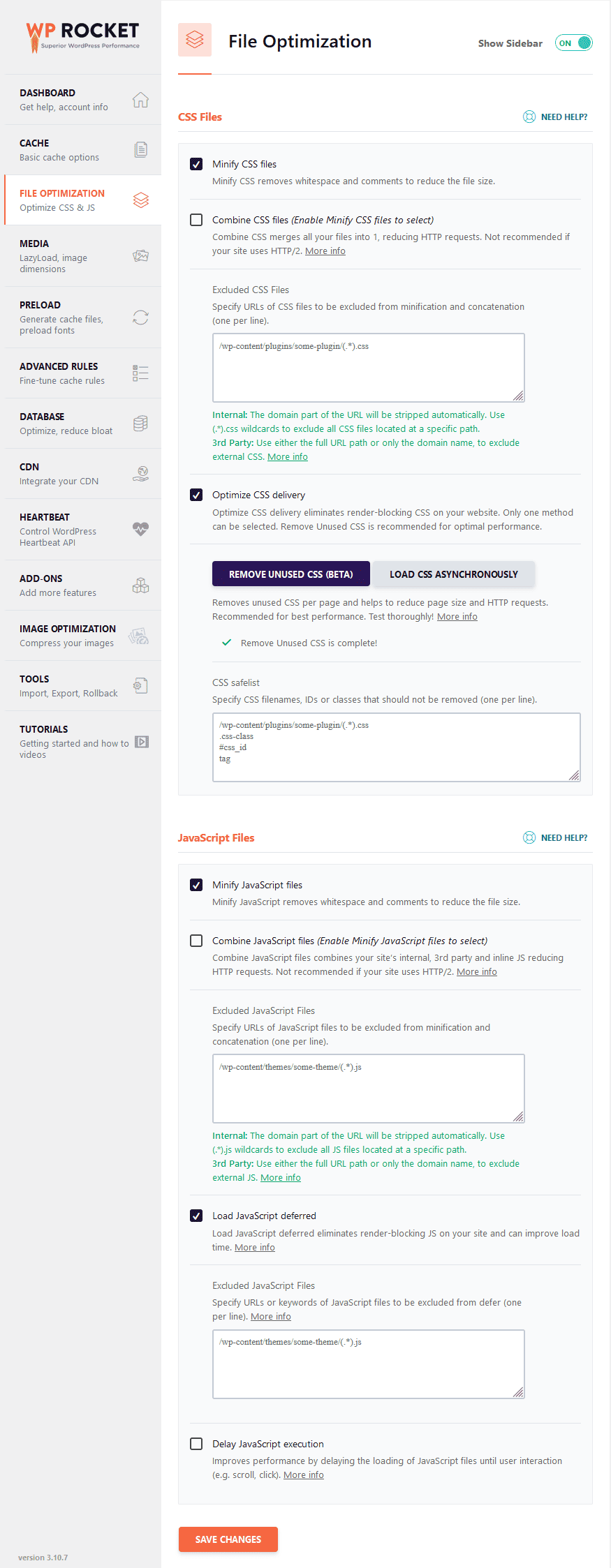
CSS Files:
- Minify CSS Files: Always tick the ✅ Minify CSS files option. It helps you reduce your CSS file size by removing white spaces and comments.
- Combine CSS Files: This option combines your already minified CSS files and helps you to reduce HTTP requests. After enabling this option, please check your website for any errors. If you find any strange layout problem, then just untick this option. Won’t be necessary if your site uses HTTP/2.
- Optimize CSS Delivery: Optimize CSS delivery eliminates render-blocking CSS on your website for faster load time. It generates the critical path CSS needed for the visible part of the website and loads all the other CSS files asynchronously, which is deferred without render blocking.
- Removed Unused CSS(beta): Removes unused CSS per page and helps to reduce page size for better performance. (It’s a beta feature, use it with caution.)
JavaScript Files:
- Minify JavaScript Files: Always tick ✅ It helps to remove white space and comments and reduces the file size.
- Combine JavaScript Files: This option combines your site’s internal, 3rd party, and inline JS, reducing HTTP requests. Won’t be necessary if your site uses HTTP/2.
- Load JavaScript deferred: It is preferable for performance that JavaScript files are deferred so that they don’t block the downloading of other assets on your site, slowing it down.
- Delay JavaScript Execution: It Improves performance by delaying the loading JavaScript files until user interaction (e.g., scroll, click). If you don’t use these files, don’t enable this option.
⚠️: Always click the “Save Changes” button after making any adjustments.
Media:
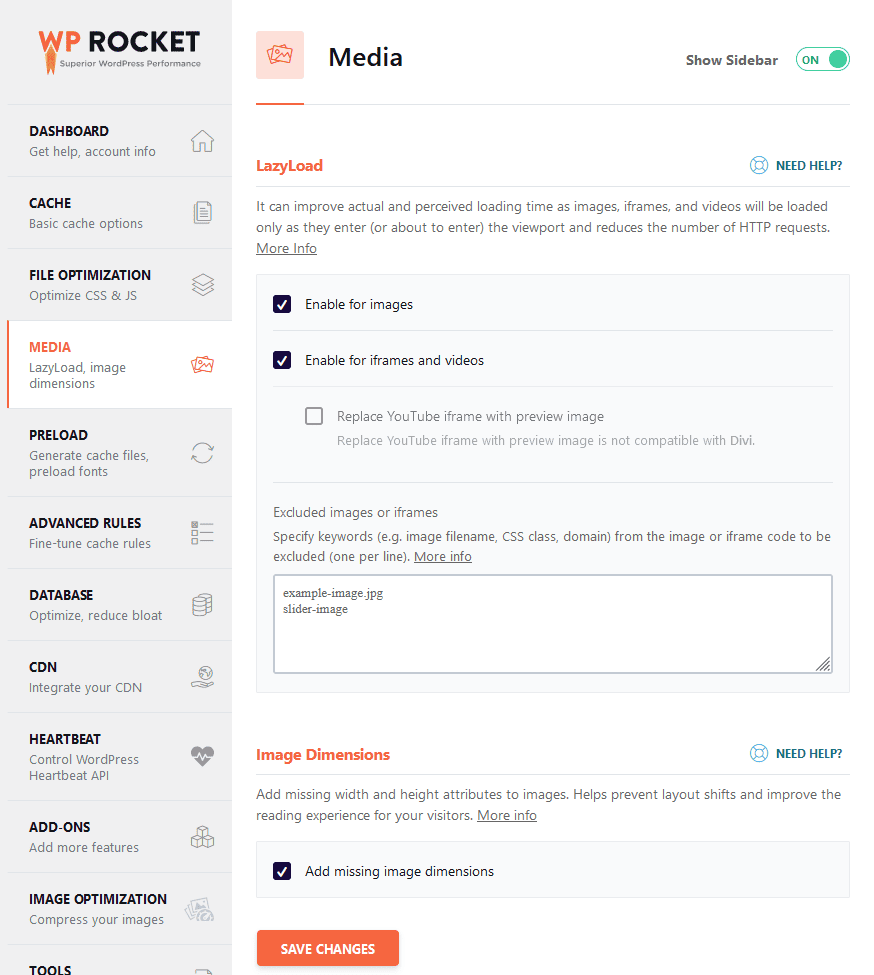
Lazy Load: Lazy loading reduces loading times by only loading images when visible, saving bandwidth and reducing actual and perceived loading times. Iframes and video embeds are also loaded only when visible, preventing unnecessary content downloads.
- Enable for Images: Always enable lazy loading images by ✅ ticking the checkbox to postpone loading online images outside the browser’s viewable area.
- Enable for Iframes and Videos: Avoid the Google slow-loading penalty caused by YouTube videos or Twitter embeddable tweets on your homepage or blog posts with this option.
Image Dimension: Tick ✅ add missing image dimensions to prevent layout shifts and enhance the reading experience for your visitors while improving your core web vitals.
⚠️: Always click the “Save Changes” button after making any adjustments.
Preload:

Preload Cache: With WP Rocket’s preloading feature, the plugin generates a cached version of your website based on your specified links, image sizes, and sitemaps. The cache is generated with priority given to sitemap pages by entering your sitemap address. You can also manually enable or disable preloading for faster cache generation of the relevant content.
- Activate Preloading
- Activate sitemap-based cache preloading:
- WP Rocket detects sitemaps generated by popular SEO plugins such as Yoast SEO, All-in-one-SEO, Rank Math SEO, SEOPress, or The SEO Framework. You can automatically use them by checking the box. Otherwise, you can specify sitemaps for preloading by entering the URLs in the “Sitemaps for preloading” text field.
Preload Links: Tick ✅ Enable link preloading to improve perceived load time by pre-downloading a page when a user hovers over the link.
Prefetch DNS Requests: DNS prefetching speeds up the loading of external files, especially on mobile networks. Enter external hosts to be prefetched in the “URLs to prefetch” text box, such as //fonts.gstatic.com.
Preload Fonts: Enter URLs for your custom fonts to help browsers discover them in CSS files, thus improving website performance.
⚠️: Always click the “Save Changes” button after making any adjustments.
Database:
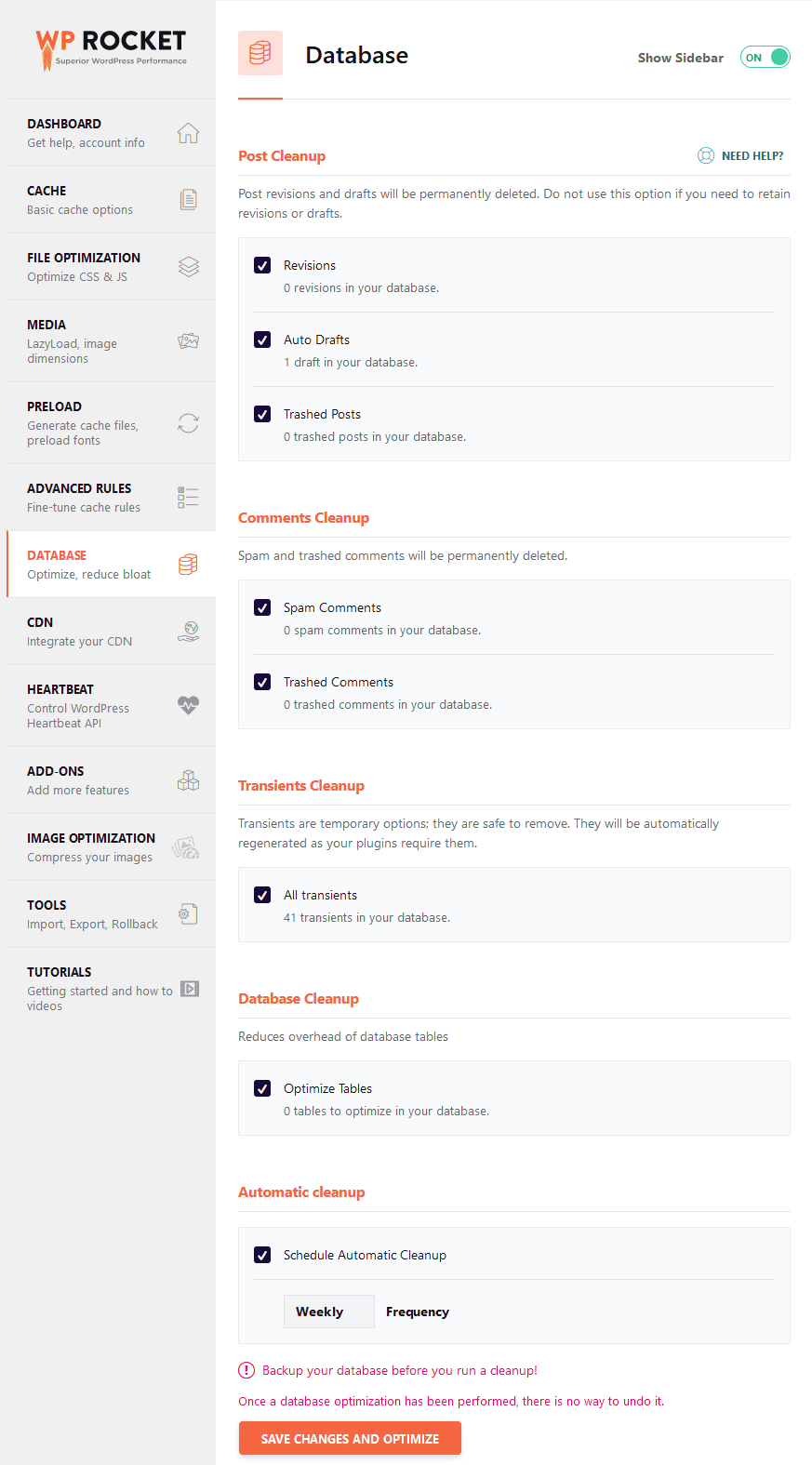
Post Cleanup: This option permanently deletes post revisions and drafts. Do not use them if you need to keep them.
Comments Cleanup: Tick ✅ this option to permanently delete spam and trashed comments.
Transients Cleanup: You can safely remove transients as they are temporary options. WordPress will regenerate them as needed.
Database Cleanup: Reduces overhead of database tables.
Automatic cleanup: You can schedule automatic cleanup from here.
⚠️: Before running a cleanup, back up your database, as database optimization cannot be undone.
⚠️: Always click the “Save Changes” button after making any adjustments.
CDN:

CDN: Enable Content Delivery Network by ticking ✅ and add your CDN URL in the provided CDN CNAME(s) field. This will rewrite all static file URLs (CSS, JS, images) to your specified CNAME(s).
Heartbeat:
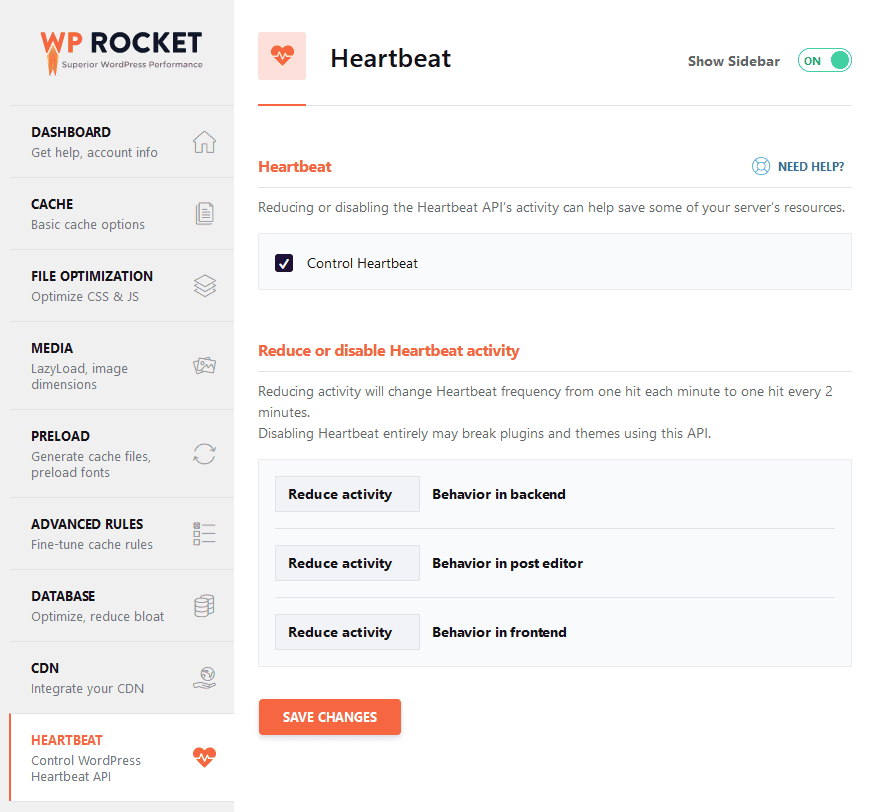
Heartbeat: Reduce or disable Heartbeat API activity to save server resources.
Reduce or disable Heartbeat activity: Reduce Heartbeat API’s activity to save server resources. It changes frequency from once a minute to every 2 minutes. Disabling it may break plugins and themes using it, so use default settings instead.
Addons:
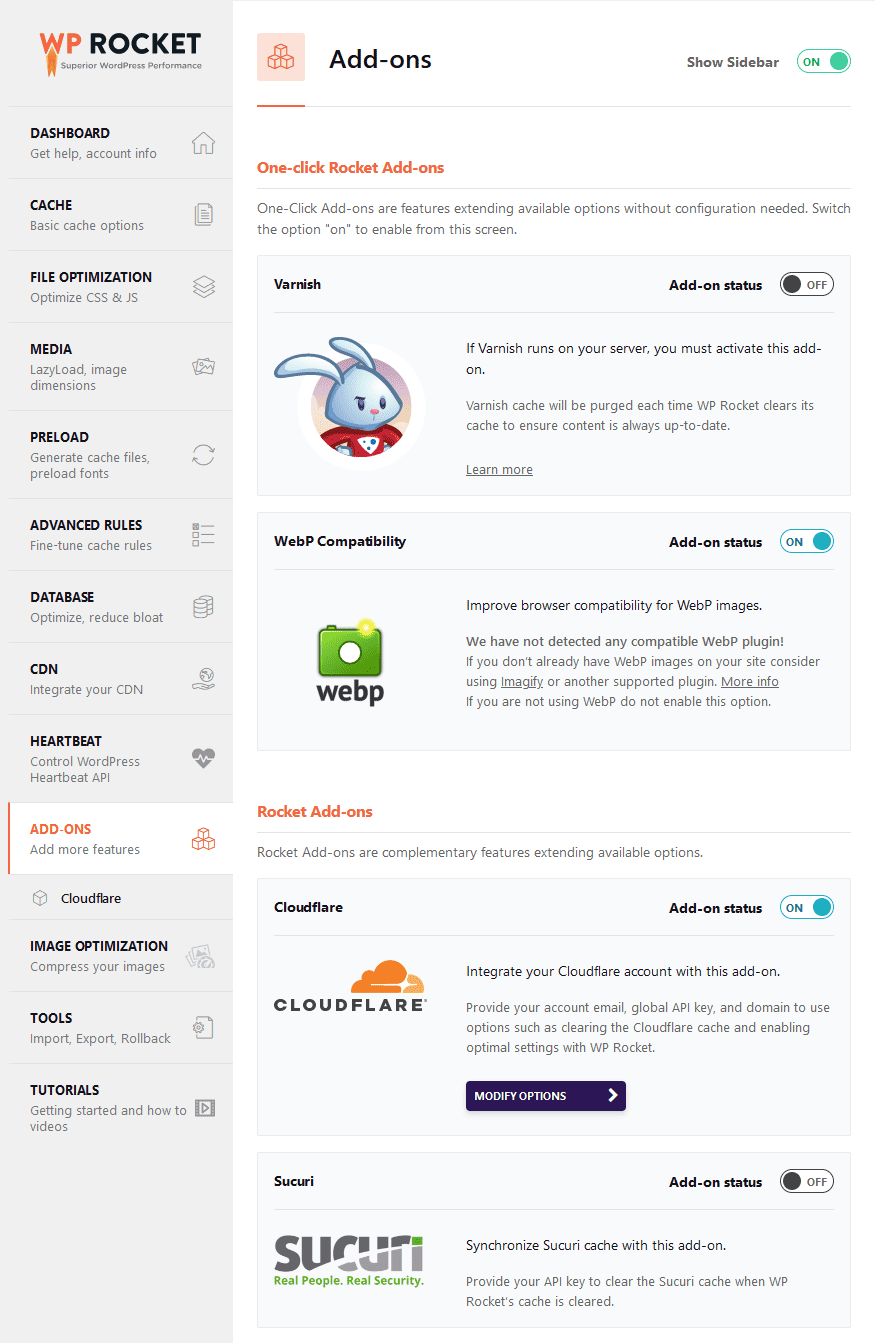
One-click Rocket Addons:
- Varnish: If your host supports the Varnish cache, enable this addon. However, since I use Webinoly, which uses Nginx and FastCGI for server-side caching, I recommend checking out CloudPanel, which uses Varnish instead of FastCGI.
- If you use Nginx and have complete server control, consider using the Rocket-Nginx configuration. This allows Nginx to directly serve cached files without involving WordPress or PHP while adding headers to cache CSS, JS, and media and reducing requests to your server.
- WebP Compatibility: Using WebP images on WP sites enhances browser compatibility. ShortPixel or Imagify can automatically generate WebP images for you.
Rocket Addons: Choosing Cloudflare as my DNS manager and enabling its add-ons helps improve loading time. If you use Sucuri, you can also enable it.
Cloudflare:
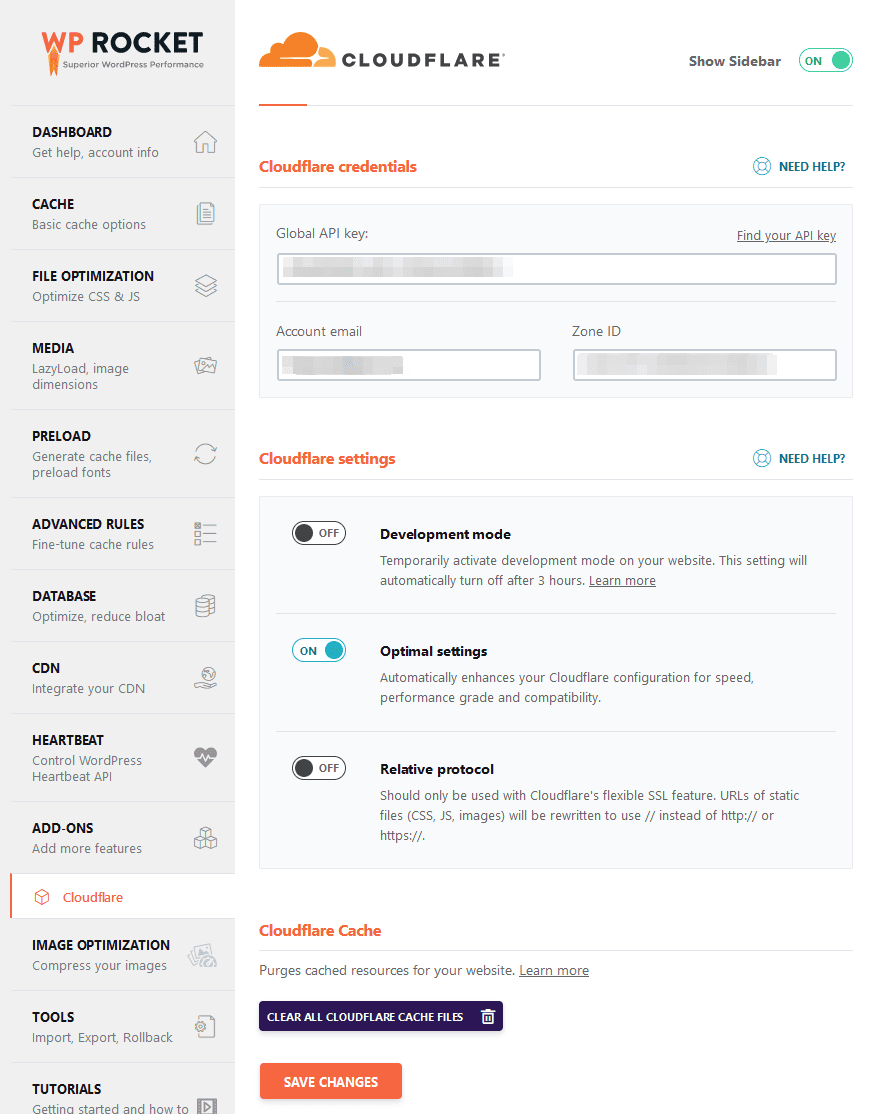
Cloudflare Credentials: To activate Cloudflare on your website, enter your Global API, account email, and Zone ID.
Cloudflare Settings:
- Development mode: To temporarily activate development mode on your website, which will automatically turn off after 3 hours.
- Optimal settings: Automatically improve your Cloudflare configuration for speed, performance, and compatibility.
- Relative protocol: Use only with Cloudflare’s flexible SSL feature. Rewrites static file URLs (CSS, JS, images) to use // instead of http:// or https://.
58% Speed Increase After Activating WP Rocket, Cloudflare Addon:

| GTmetrix Grade | A |
| Performance | 96% |
| Structure | 100% |
| LCP | 1.0s |
| TBT | 29ms |
| CLS | 0.13 |
| First Contentful Paint | 588ms |
| Time to Interactive | 918ms |
| Speed Index | 617ms |
| Backend Duration | 239ms |
| TTFB | 372ms |
| First Paint | 543ms |
| Onload Time | 953ms |
| Fully Loaded Time | 1.2s |
| Requests | 14 |
| Page Size(Compressed) | 348KB |
| Page Size(Uncompressed) | 731KB |
Image Optimization:
I use ShortPixel instead of WP Rocket’s Imagify because it’s my choice. You can choose any image optimizer with WP Rocket.
If you don’t use Imagify, this tab will appear in the WP Rocket sidebar.
Tools:
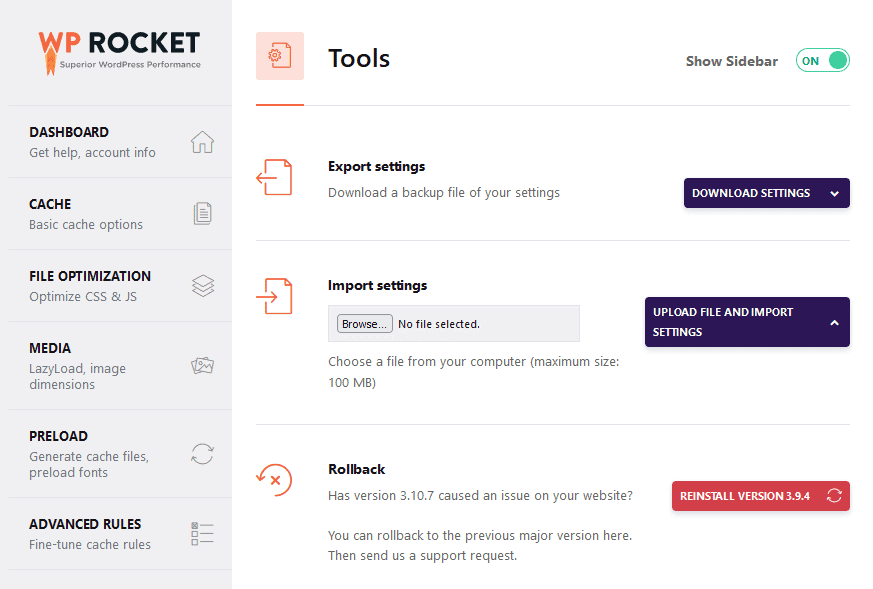
The Tools tab allows you to export and import settings. You can also roll back to the previous major version here in case of any issues with the current version of WP Rocket.
Tutorials:
To learn more about WP Rocket, check out this section, which includes how-to videos and guides.
How much does it cost to purchase WP Rocket?
WP Rocket offers three pricing plans, differing only in the number of supported sites. There are no feature limitations, so you’ll get what you need at any price point.
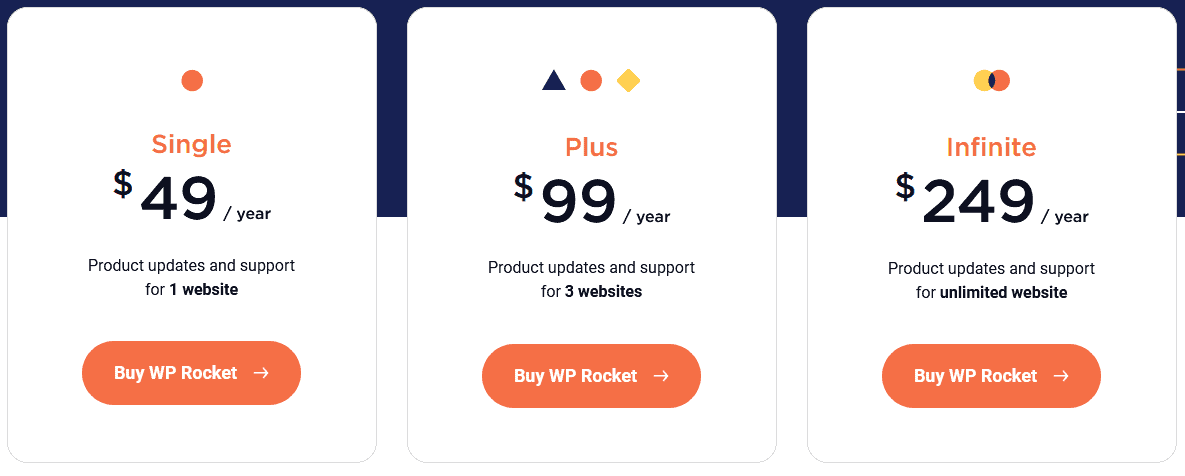
WP Rocket offers 3 payment plans: $49 for 1 site license, $99 for 3 sites, and $249 for unlimited sites.
All plans have no feature limitations and include one year of free support and updates. After one year, you get a 50% discount on your plan. Plus, there’s a 14-day refund policy if you’re not satisfied.
WP Rocket Free Alternatives
If you don’t want to use WP Rocket, consider using these top free WordPress speed optimization plugins to speed up your WP sites.
Cache Enabler:

Cache Enabler is a free plugin that caches static HTML files to boost your WordPress site’s speed.
Here, you can find a Cache Enabler review comparing it with WP Rocket to see how they compare.
LiteSpeed Cache:

LSCWP (LiteSpeed Cache for WordPress) provides a complete site acceleration module with a server-level cache and multiple optimization features.
⚠️: To use LSCWP, you must have LiteSpeed Enterprise or Open LiteSpeed server for optimal performance.
Swift Performance Lite:

Swift Performance speeds up any WordPress website with its modern caching system, allowing caching of dynamic pages and AJAX requests. It also offers exceptions rule based on URLs, pages, or content.
WP Rocket Plugin Frequently Asked Questions:
Q: Is WP Rocket free?
Ans: No free version or trial is available, but the WP Rocket developer offers a 14-day money-back guarantee for those who want to try the plugin.
Q: What does WP Rocket do?
Ans: WP Rocket significantly increases the speed of your WordPress site, which is important for improving search engine rankings and getting more traffic.
Q: How does the WP Rocket cache work?
Ans: WP Rocket improves site performance by storing HTML, CSS, and JavaScript assets for easy access and browser caching commonly accessed assets to reduce server load and increase page loading speed.
Q: Is WP Rocket worth it?
Ans: Investing in WP Rocket is worth it for a plug-and-play option to speed up your WordPress website with no technical or coding knowledge required, compared to other plugins that claim to offer solutions for speeding up your website, including some free options.
Q: Is Autoptimize better than WP Rocket?
Ans: Pairing Autoptimize with WP Rocket can provide more granular settings for tweakers, although WP Rocket already handles most tasks.
Summary
WP Rocket is a user-friendly caching plugin that loads WordPress websites faster, resulting in happier visitors and increased business revenue.
I know it may appear pricey, but for $49, you can have peace of mind.
I hope this post has provided you with some valuable insights. While there are multiple ways (including free options) to enhance the speed of your WordPress website, using WP Rocket is a simple yet effective solution. This easy-to-install plugin optimizes your website and images, enhances overall performance, and boosts SEO.
I hope the above review has helped you choose the best caching plugin for your business website.
If you’re still curious about improving your website speed, I suggest trying WP Rocket by clicking the button below. If you have any questions, feel free to ask in the comments section.
